
When working with text in Darty-Ai, the Text method gives you precise control over how content is replaced, formatted, or dynamically inserted into your Illustrator documents. You can target text in several different ways depending on your workflow.
Text Targets:
- Replace and format tagged text frames
Replaces the entire contents of a tagged text frame.Example:
Before:
[tag:product_name] Awesome Shoes™
After
(row value: "Running Pro 2000"):
Running Pro 2000A product_name text replace Running Pro 2000 Sleek Sneak Fast Track 7000 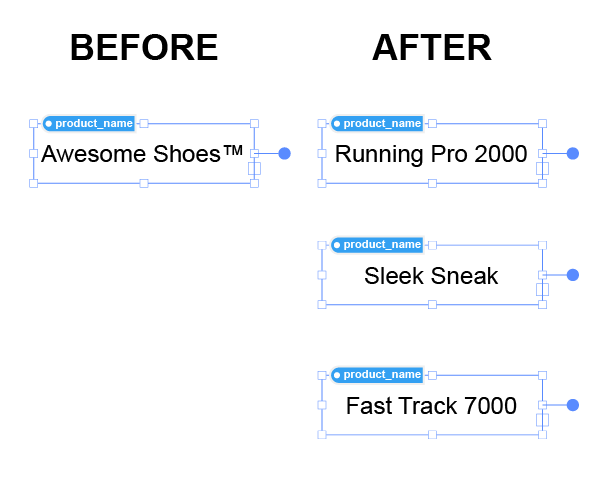
-
Target
{{template}}strings
Replaces and formats placeholders like{{name}}or((price))without altering the rest of the text.Example:
Before:
Hello {{firstName}}, your order #{{orderId}} is ready.
After (row values: firstName = "Alex", orderId = "91234"):
Hello Alex, your order #91234 is ready.A B C D * * text text find: firstName replace find: orderId replace firstName Alex orderId 91234 firstName Tom orderId 91235 firstName Anna orderId 91236 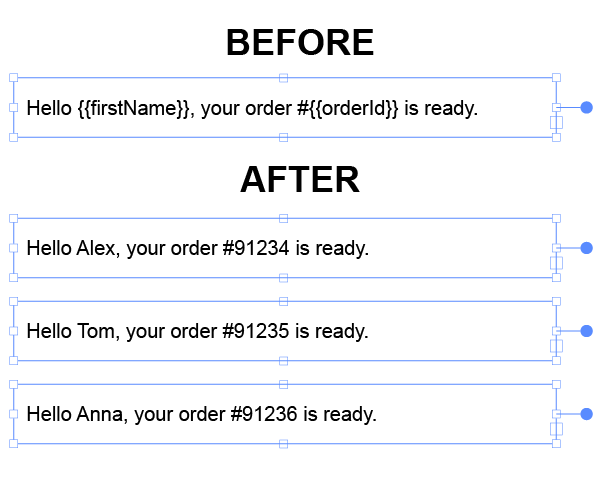
-
Replace and format plain text
Searches for exact text and replaces it. Useful for correcting fixed strings or updating repeated terms.Example:
Before:
The artist selected Blue as the primary color.
After (replace "Blue" → "Navy"):
The artist selected Navy as the primary color.A B C * text find: Blue replace mode: all Blue Navy all Blue Peacock all Blue Sapphire all 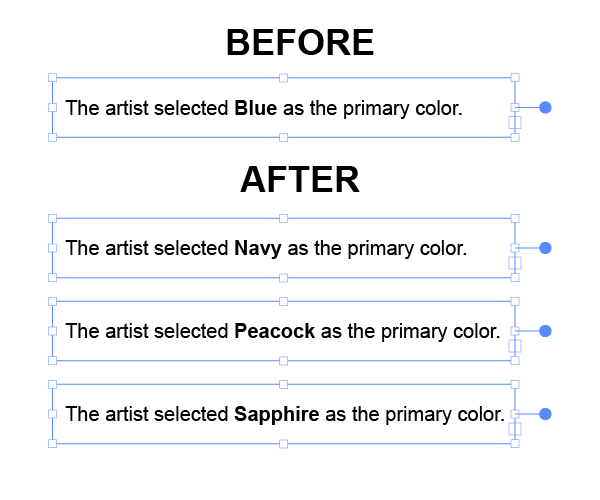 Note:
Note:mode: allis required in this case because the text you are matching is not wrapped in{{curly}}or((round))brackets. By default,findonly targets wrapped template strings, somode: allensures the plain text is matched. -
Regex-based replacement and formatting
Uses regular expressions to target patterns rather than exact text. This allows very powerful transformations.Example 1 – Update all
name_1, name_2, name_3...templates:
Regex:^name_
Matches:{{name_1}}, {{name_2}}, {{name_3}}Example 2 – Clean multiple spaces:
Regex:\s{2,}
Replacement:" "
Before:
Product Name: Running Shoes
After:
Product Name: Running ShoesExample 3 – Replace number formats:
Regex:(\d{3})(\d{3})(\d{4})
Replace:$1-$2-$3
Before:5551234567
After:555-123-4567Example 4 – Correct Emoji Fonts:
Regex:/\p{Emoji}/
Font:EmojiOne
Before:▯
After:😀A B C D * text regex replace mode font ^name_ Darty-Ai {( Arial Black \s{2,} " "/td> (\d{3})(\d{3})(\d{4}) $1-$2-$3 /\p{Emoji}/ EmojiOne 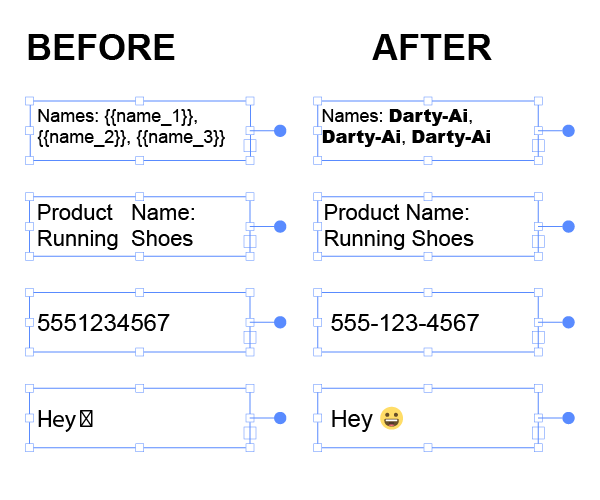 Note:
Note:mode: {(is required when matching text wrapped in{{curly}}or((round))brackets usingregex. By default, template placeholders are treated as whole phrases, so the brackets themselves are not matched unlessmode: {(is specified.
You can mix and combine all of these techniques to build powerful, automated text workflows—whether you’re generating labels, packaging, product catalogs, proofs, or large-scale variable-data documents.