
Darty-Ai, Data Driven Design
Revolutionize Your Adobe Illustrator Workflow
Darty‑Ai is a variable‑data plugin for Adobe Illustrator®, that links spreadsheet data (Excel, Google Sheets and CSV files) directly to your documents. Automate and manipulate at scale and speed. Batch-edit texts and artwork, changing their appearance and content, export assets, and generate data-driven designs efficiently.
What can Darty-Ai do for you?
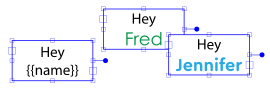
Easily update full text frames or specific text segments, adjust formatting, and ensure clean, overflow-free fitting while meeting legal and brand requirements.
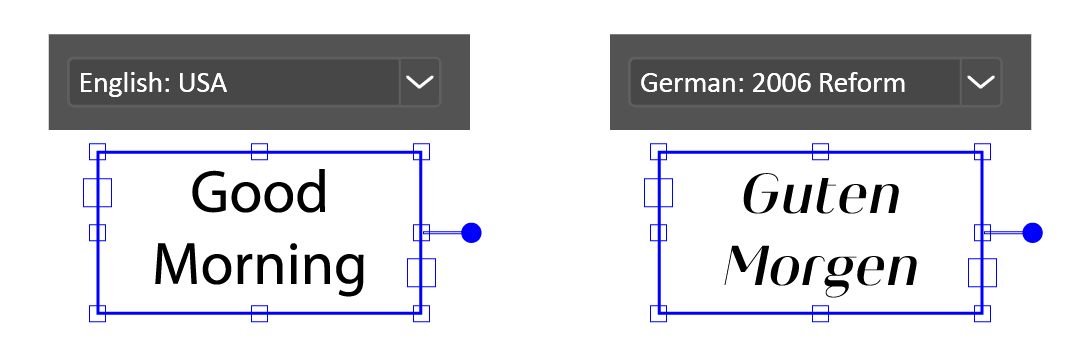
Populate translations - preserve formatting, adapt layouts to each locale, ensure full right-to-left support, allocate text language, and keep text fitting perfectly without overflow.
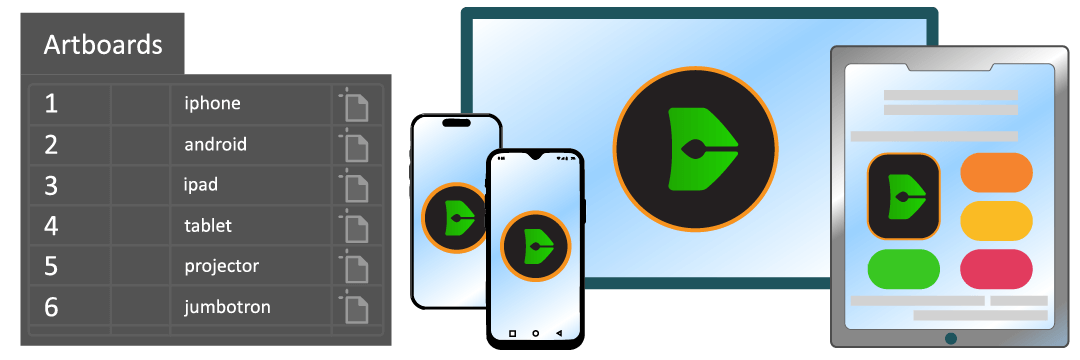
Update dozens of artboards at once - swap text and images across layouts of any size, and create multilingual posts optimized for every device and screen.

Personalize at scale - fine-tune colors, fonts, effects, text, and graphics for gifts, sport gear, swag, promos, and stickers with full creative control.
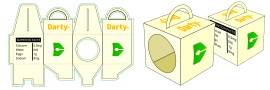
Automate packaging variations - manage dielines, compliance labeling, and import nutrition facts or product copy directly from your data.
What can you do with Darty-Ai’s Export feature?
Export pixel-perfect images - control size, resolution, background, and padding for every screen and resolution.
Output AI, PDF, EPS, and SVG with full Illustrator settings - plus add PDF permissions and passwords powered by dynamic data.
Automate file structure - generate export paths and names from spreadsheet data, template properties (artboard name, dimensions, document name, etc.), or Darty-Ai’s built-in variables and counters.
Batch process and export template files - even without linked data.
Automatically fix overset text and optionally remove unused swatches and symbols for cleaner, production-ready files.
What methods can you automate with Darty-Ai?
- Align & Distribute – Advanced alignment and distribution options
- Appearance – Manage multiple strokes and fills, colors, opacity, visibility, and effects on artwork or layers
- Artboard Methods – Name, move, resize, and set properties
- Arrange & Z-Order – Bring forward, send back, or change stacking order relative to artwork or layers
- Attributes – Set name, notes, URLs, wrap, and many more artwork attributes
- Clean Document – Remove unused swatches and symbols from the document
- Clipping Mask & Compound Path – Make and release
- Color Mode – Set documents to RGB or CMYK
- Duplicate – Create multiple copies of artwork; position them using transform, align, or distribute
- Expand – Expand artwork
- Fit to Bounds – Size artboards to artwork bounds, with or without padding
- Group & Ungroup – Manage grouping of artwork
- Layer Methods – Add, duplicate, edit, move, and remove layers
- Outline – Convert text to outlines
- Pathfinder – Apply pathfinder effects
- Place – Place files or graphics into a frame with advanced options
- Remove – Remove artwork; adjust visibility with appearance or attributes methods
- Swatch Methods – Add, edit, and remove swatches
- Tag Methods – Add, edit, and remove tags; name artwork by tag or tag by name
- Text – Format, recolor, and replace text; update entire text frames or specific parts using simple find/replace, template brackets {{ }}, or advanced regex (including Unicode ranges like emojis)
- Transform Methods – Scale, resize, rotate, move, and shear artwork.
📚 Learn And Explore 🔭
See real workflows, learn the methods in depth, and get productive faster!
FAQs
What is Darty‑Ai and what does it do?

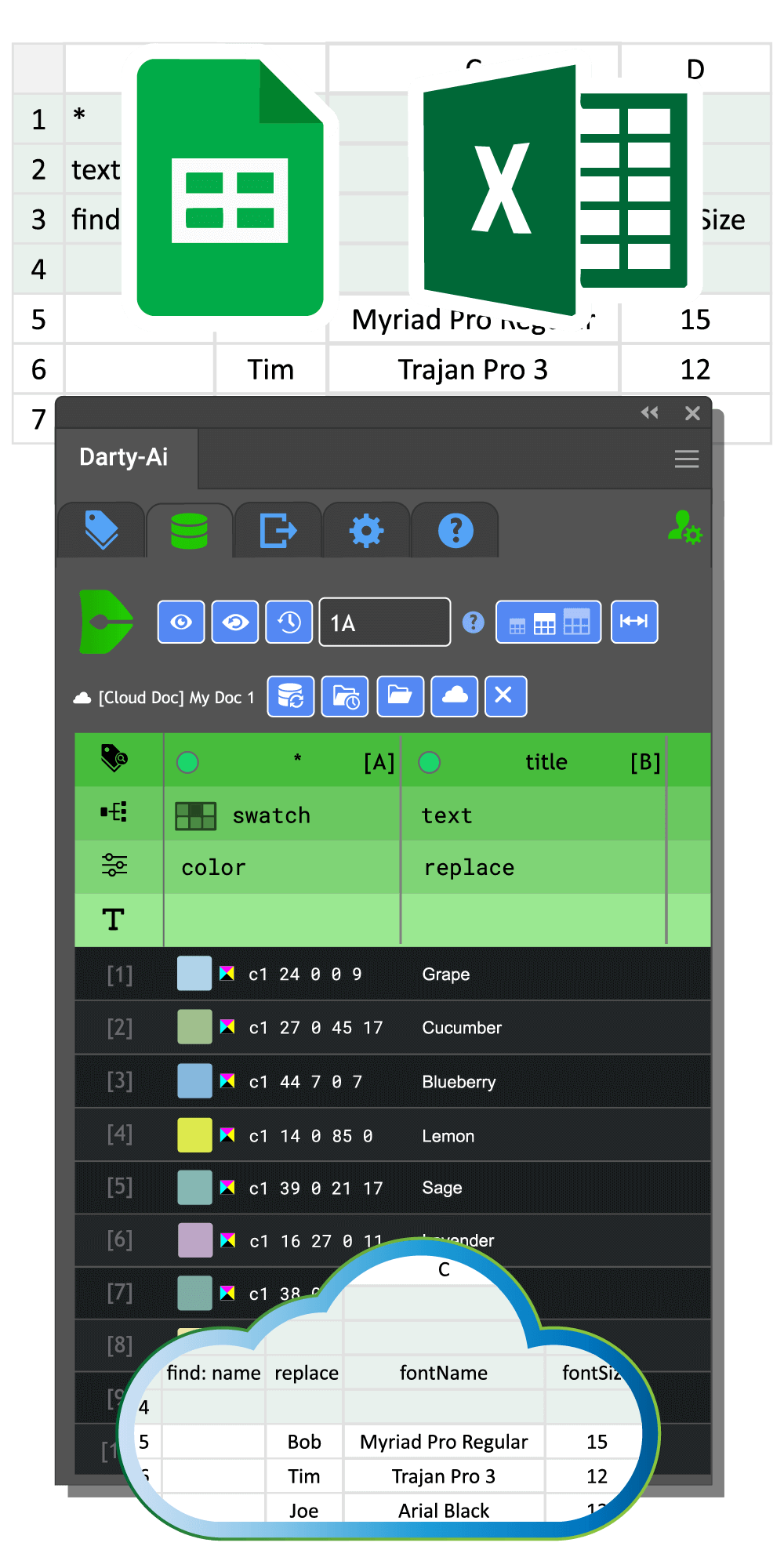
Does Darty‑Ai work with Google Sheets and Excel files?
-
Public Google Sheets – Yes, Darty-Ai can connect to Publicly Shared Google Sheets.
No setup or authentication needed. -
Private Google Sheets – Yes, Darty-Ai can connect to Privately Shared Google Sheets.
A one time setup is required for this feature, authentication is provided by OAuth pop-ups or service accounts. -
Excel Files (.xlsx, .xls) – Yes, Darty-Ai can directly read Excel files stored locally or in publicly shared Google Drive locations.
No setup or authentication needed. -
CSV Files (.csv) – Darty-Ai can read CSV files stored locally or in publicly shared Google Drive locations.
No setup or authentication needed.
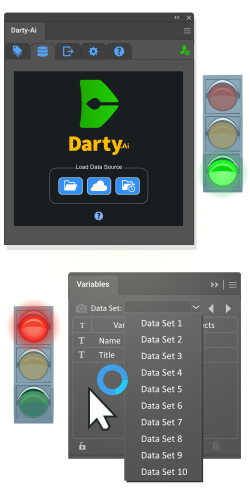
How does Darty‑Ai differ from Illustrator’s native Variables panel?
- Resource usage: Native variables can become a performance bottleneck, occasionally causing Illustrator to crash under load. Darty-Ai’s tags are lightweight, reliable, and don’t bloat your document.
- Setup complexity: Illustrator's Variables panel requires multiple tedious steps for each object. In contrast, Darty-Ai makes tagging simple — apply tags directly to layers, groups, or objects with minimal friction.
- Targeting power: Darty-Ai includes a flexible tag search system, making it incredibly easy to target and update objects dynamically — far beyond what native variables allow.
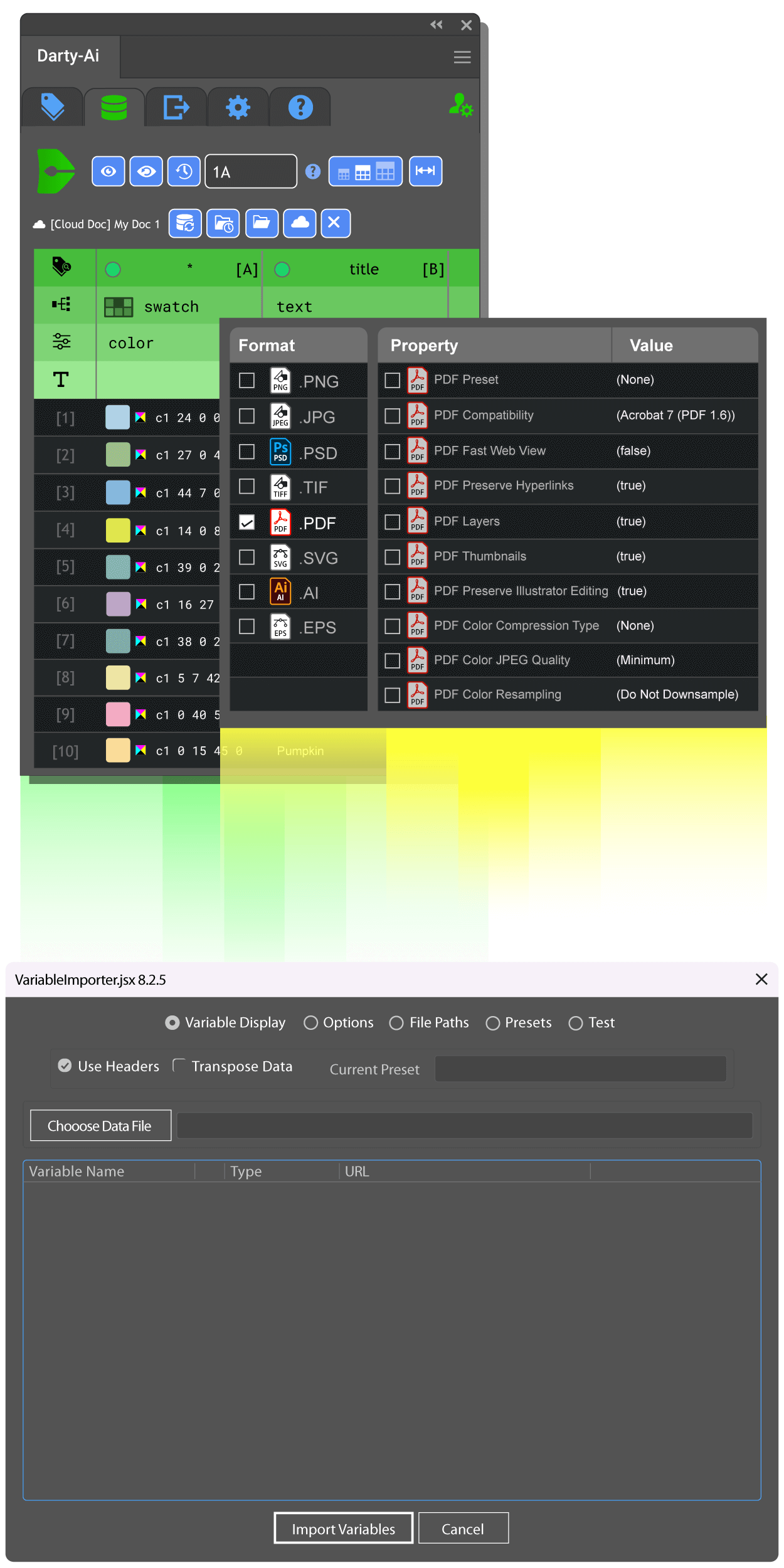
How does Darty‑Ai differ from the Variable Importer script - VariableImporter.jsx
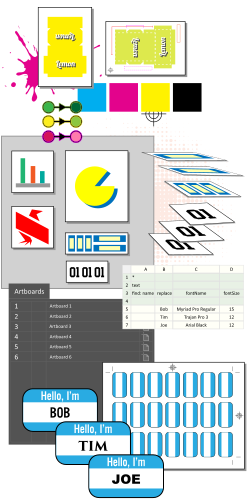
What types of design tasks can I automate with Darty‑Ai?
What types of design tasks can I automate with Darty-Ai? ⚡
-
Text updates and content replacement ✏️
Update names, numbers, labels, SKUs, descriptions, and any other text fields from spreadsheet data. -
Dynamic object manipulation 🔧
Show, hide, move, duplicate, resize, or recolor objects based on your data or conditions. -
Artboard-based automation 🖼️
Generate variations per artboard, adjust artboard names, and export multiple formats at once. -
Bulk exporting 📤
Create hundreds or thousands of files in multiple formats—each with custom names and folder paths. -
Layout adjustments 🧩
Swap images, position elements, fit text to areas, and adapt layouts depending on your data. -
Placing external files 📎
Insert linked or embedded images using simple relative paths. -
Conditional logic 🔀
Create rules such as “If value is X, use this layer,” or “If field is empty, skip this.” -
Attribute automation 🎛️
Change colors, stroke widths, opacity, layer visibility, blend modes, and more.
What industries is Darty‑Ai designed for?
What industries is Darty-Ai designed for? 🌍
-
Sublimation & Sports Apparel 🏅
Automate player names, numbers, sizes, team variations, and colorways for jerseys, shorts, hoodies, and training gear. -
Packaging & Labeling 📦
Generate product labels, ingredient panels, barcode placements, multilingual layouts, regulatory variations, and SKU-based artwork. -
Food Supplements & Health Products 🍶
Update flavors, nutritional tables, batch numbers, warnings, and branding variations across bottles, sachets, and pouches. -
Print-on-Demand Merch 👕
Produce hundreds of artwork variations for shirts, mugs, posters, tote bags, and personalized items. -
E-commerce Product Asset Creation 🛒
Render product variants, color swatches, size charts, promotional graphics, and templated feature images. -
Branding & Marketing Agencies 📣
Create large sets of banners, flyers, ads, brochures, and campaign variations driven by spreadsheet data. -
Signage, Large Format & Banners 🖼️
Automate layouts for roll-ups, billboards, safety signs, event signage, and directional graphics. -
Stationery & Business Collateral 🗂️
Bulk-produce business cards, ID badges, certificates, envelopes, nameplates, and branded templates. -
Product Personalization Services ✨
Generate custom name-based items such as awards, plaques, tags, event passes, and engraved layout previews. -
Retail & Shelf-Ready Artwork 🛍️
Create shelf labels, price tags, promo cards, carton templates, and point-of-sale materials. -
Promotional Products & Giveaways 🎁
Automate pen imprints, bags, lanyards, stickers, USB drives, and thousands of SKU-based imprints. -
Manufacturing & Technical Graphics ⚙️
Update part diagrams, serial numbers, safety labels, schematics, and configuration-dependent drawings. -
Education 🎓
Generate classroom posters, charts, certificates, worksheets, student badges, and learning materials in bulk. -
Architecture 🏗️
Automate title blocks, project labels, diagram variations, signage sets, room labels, and plan annotation graphics.

Can Darty‑Ai handle complex text styling and effects?
- Update entire text frames or targeted segments.
- Use simple find/replace, template brackets (
{{ }}), or advanced regex. - Supports Unicode character ranges, including icons and emojis.
- Assign fonts, styles, and composers based on language or character sets.
- Control character and paragraph directions per language.
- Set dedicated emoji fonts for proper rendering.
- Adjust fonts, weights, fills, strokes, underline, strikethrough, and justification.
- Control size, leading, first-line indent, overprint stroke, and text position.
- Apply character and paragraph styles.
- Drive all variations directly from spreadsheet data.
- Apply shadows, glows, outlines, and other Illustrator effects.
- Control Appearance attributes or use predefined Graphic Styles.
- Apply effects to text frames or their containing layers.
- Automatically resize text within defined areas.
- Supports minimum and maximum size limits.
- Prevents overflow and ensures compliance requirements are met.

Can I preview changes before exporting?

What export capabilities does Darty‑Ai support?
- Export Illustrator files to multiple formats, AI, PDF, SVG, EPS, PNG, JPG, TIFF and PSD.
- Create custom file names and folder structures based on spreadsheet data, document properties, Darty-Ai variables, and counters.
- Batch-export hundreds or thousands of variations in a single run.
- Generate layered or flattened outputs depending on project requirements.
- Export artboards individually or as grouped sets.
- Export tagged assets for web and app development.
- Export the whole document.
- Set dimensions, resolution, quality settings, color mode, padding, background color, and other parameters for raster formats.
- Apply PDF security settings including passwords and permissions dynamically.
- Save files to dynamic paths, network locations, or user-defined directories.
- Apply export presets or Illustrator settings for consistent outputs.
- Use smart cleanup options to fix overset text and remove unused swatches and symbols before exporting.
- Automate exports without linked data using spreadsheet-free export mode.
- Monitor export progress with real-time status updates.
- Receive detailed logs of export operations for auditing and troubleshooting.
- Store and manage export presets for reuse across projects.

How do I get started, and where is the documentation?
- Sign up for a Darty-Ai account on our pricing page. You can select the free plan until you are 100% sure that Darty-Ai meets your needs. No payment information is required for the free plan.
- You will receive an email with your account details and instructions. Check your spam / trash mail if you don't see it in your inbox.
- Download and install the Darty-Ai plugin for Adobe Illustrator from the Darty-Ai Installers page.
- Open Adobe Illustrator and access Darty-Ai from the Window > Extensions > Darty-Ai menu.
- Enter your account token to log in to the plugin.
- Refer to the Darty-Ai Documentation for detailed guides and tutorials.
- Explore our Getting Started Tutorials to learn how to use Darty-Ai effectively.
- If you need help, visit our Contact page or email your questions to support@dartyemail.com.ai.
- Keep up to date by following our Darty-Ai Blog and LinkedIn Page.
- Manage your account and subscription settings through the Darty-Ai licensing dashboard and the Manage Purchases Page.
- Check out Darty-Ai's help tab within the plugin for quick assistance and tips.
- Click on the help and info icons within the plugin interface for additional guidance.

Is there a free version?
Yes - Darty‑Ai offers a free tier. You can download the plugin, explore its features, and test workflows at no cost.
We want you to be 100% satisfied before committing to a paid plan, and highly recommend starting with the free tier to ensure it meets your needs.
Click the Get Started button on the free plan to begin.

Free
- 200 Monthly Credits
- Up to 100 columns per row
- 1 Install
- Credits Last 1 Month
- No credit card required
Basic
- 2,000 Monthly Credits
- Up to 250 columns per row
- 3 Installs
- Credits Last 2 Months
Business
- 20,000 Monthly Credits
- Up to 2,000 columns per row
- 5 Installs
- Credits Last 4 Months
Enterprise
- Enterprise Service
- Unlimited Credits
- No Column Limits
- 7 Installs