
Self-Adjusting Text
A self-adjusting logo built in Adobe Illustrator with Darty-Ai. Text, icon, and tagline respond automatically to spreadsheet data.
Design systems are often treated as static compositions, yet they are increasingly fed by dynamic inputs. When text length shifts, alignment and spacing are affected in subtle but meaningful ways. Rather than correcting these changes manually, conditional logic allows the layout to recalibrate itself.
This approach reframes Illustrator as a responsive environment. Structure and data work together, preserving balance while enabling variation at scale.
Design Phase

In this example, the logo is composed of three independent elements that respond dynamically as data is populated. The primary replaceable text forms the main body of the logo. The heart graphic serves as the icon element. Beneath the main text sits a smaller supporting line, referred to as the tagline.
When the main text changes, variations in character count can alter its overall width. These differences naturally introduce layout shifts, requiring the surrounding elements to adjust in order to preserve alignment and visual balance.
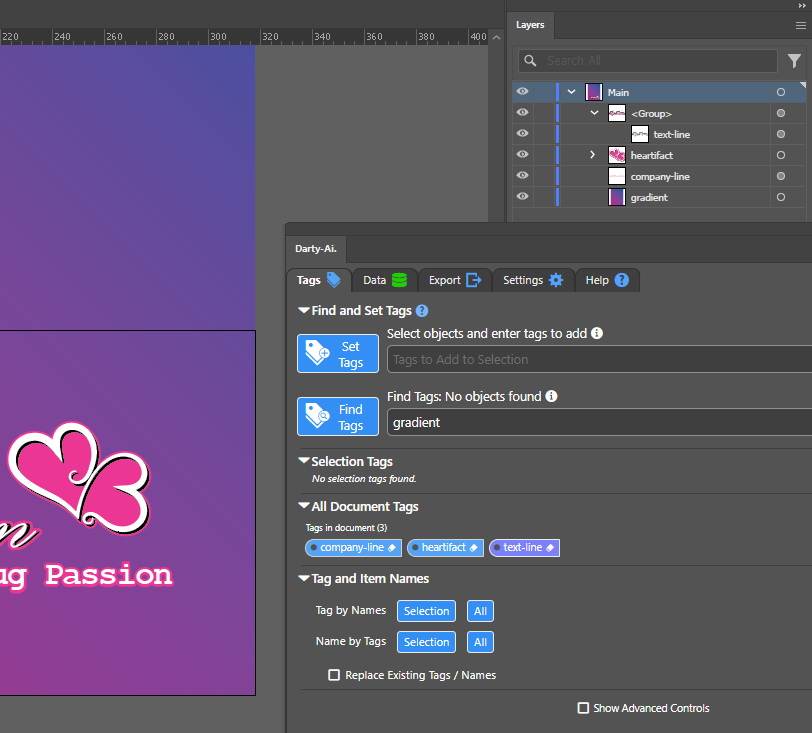
We found the art elements in the layers panel and named them accordingly:
- Icon “heart artwork” is named as “heartifact”.
- Main Text line is named “text-line”.
- Tagline (static for text purposes) is named “company-line”.

Then, we tagged the artwork using Darty-Ai:
Icon & Main Text Adjustment
One of the main challenges in making this card dynamic while preserving its original visual integrity was ensuring that the logo positioned to the right of the main text could flex horizontally based on text length. As the headline expands or contracts, the logo needs to shift accordingly to maintain balance.
Data to the rescue! With the help of modern AI to create smart formulas, it is possible to create a dynamic conditional manipulation on the fly.
InternalData Lookup Tab
A separate tab (called “InternalData”) was created inside the sheet for storing re-usable data constants. For example, when some text is very long, it is best to shift the text to the left some amount. For this, the fixed numbers in B2 and C2 help the sheet’s formulas work. In column A, pattern-color names are listed for use in swatch application procedures. This can produce data-validation choice dropdowns as well as reduce spelling errors and helps overall consistency.
| patterns | left shift on long words | super-long word left factor |
|---|---|---|
| PFX-017 | -14 | 4 |
| PFX-004 | ||
| PFX-002 | ||
| PFX-007 | ||
| PFX-009 | ||
| camo-pattern |
Darty-Ai Spreadsheet Process Data
This is the process data we ended up creating inside a Google Sheet for use with this demonstration. It uses the InternalData lookup tab to get certain values in certain cases, while other times hard-coded values are used inside the formulas. Importantly, the sheet is grouped by its logic to represent distinct sets of activities to be performed featuring our tagged artwork items.
| A | B | C | D | E | F | G | H | I | J | K | L | M |
|---|---|---|---|---|---|---|---|---|---|---|---|---|
| text-line | text-line | heartifact | heartifact | company-line | ||||||||
| text | transform | transform | align | align | ||||||||
| replace | font | fontsize | deltaX | deltaX:200pt | targetAnchorPoint:r | target:text-line | offset:10pt | target:text-line | targetAnchorPoint:b | align:t | offset:5pt | skip:true |
| txt | ||||||||||||
| Pug Passion | 0 | |||||||||||
| Happy Birthday | -14 | FALSE | ||||||||||
| Party On | 0 | 30pt | FALSE | |||||||||
| Celebrate | 0 | 20pt | ||||||||||
| Great Job | 0 | 30pt | FALSE | |||||||||
| Congratulations | 0 | |||||||||||
| Golden Boy | 0 | 30pt | FALSE | |||||||||
| You Got This | Jersey M54 | 29 | 0 | 30pt | ||||||||
| Get Well Soon | 0 | 30pt | ||||||||||
| Enjoy Your Vacation | -12 |
Changing Font
Different fonts take up different space at the same font-size. Therefore, fixing a known good-looking font size for a known font is a solution for when the font family changes and the text must be set to a proper size.
The formula used in column C checks if the font mentioned in B is “Jersey M54”, and if so, it applies the pre-configured number from the InternalData tab.
=IF(B12="Jersey M54", 29, "")
Adjusting Overly-Long Main Text


Using the InternalData values for leftward shifting, the text-line (Main text) is moved leftward only when the input is over a certain amount of characters. This formula is in our Column E
=IF(
  LEN(A5)>16,
  (LEN(A5)-16)*-InternalData!$C$2,
  IF(
    AND(
      LEN(A5)>=14,
      LEN(A5)<=15,
      LEN(REGEXREPLACE(A5,"[^A-Z]",""))>=2
    ),
    InternalData!$B$2,
    0
  )
)
By calculating the character count directly from the spreadsheet input, a Google Sheets formula dynamically generates a horizontal shift value whenever necessary. This allows the layout to respond proportionally to the data without manual intervention.
Adjusting the Icon Artifact


A powerful Darty-Ai Align command with fine-tuning solves the issue of moving the icon to the right, ensuring it fits well with its closest text.
Column E simply moves the icon a far-away distance to the right, to ensure it is completely to the right and outside the bounds of the text. This is done via data, so the initial state can look accurate and close to the final result. However, the icon could start far to the right initially as well.
Column F performs the Align method, choosing the ‘r’ right anchor of the targeted key artwork item, in this case the text-line text frame.
Column G sets the target key-item of the Align method used here to the “text-line” text frame.
Column H: this column adds an offset to the alignment, to make it go right-wards from its right-aligned position to the text since in this case, without specifying the source anchor, it aligns by the icon’s center to the text’s right-point. The offset is calculated to account for the fact that some words have ascender characters or capitals in their last four characters - therefore specific offset overrides are set while the default offset is specified at 10 pt.
=IF(
  REGEXMATCH(RIGHT(A5,4),"[A-Z]"),
  "30pt",
  IF(REGEXMATCH(RIGHT(A5,2),"[bdfhklt]"), "20pt", "")
)
Tagline Part Adjustment

A similar refinement was required for the small tagline beneath the primary headline. If descender characters (such as g, j, p, q, or y) appeared in the lower portion of the centered text, there was a risk of visual collision. However, permanently lowering the tagline was not an acceptable solution, as the composition looks stronger when no descenders are present.
The following formula is in column M:
=IF(OR(
  LEN(A5)<=4,
  AND(
    LEN(A5)>4,
    REGEXMATCH(
      MID(A5, ROUNDUP(LEN(A5)/2)+1, 999),
      "[gjpqyGJPQY]"
    )
  )
)
, FALSE, "")
Instead, the solution detects whether descenders occur in the second half of the centered text and conditionally applies a vertical adjustment only when needed. A Google Sheets formula evaluates the character structure and generates the appropriate offset dynamically, ensuring the layout remains visually precise across all variations.
Output Results
This example shows how a logo can move beyond a fixed composition and become a responsive system. By combining structured data with conditional layout logic, even small typographic shifts can be handled automatically while preserving visual balance. The same principles can be applied to other branding elements, opening the possibility of building self-adjusting identities tailored to your own workflows and design goals.