
In our getting started guide, we introduced how paths work in Darty-Ai for linking images stored in different folders on your computer or network. This post expands on that foundation with clearer explanations and practical examples so you can use paths confidently in any workflow.
Paths can be written as either absolute or relative:
Absolute paths are fully qualified and begin with a root directory. They start with:
- a leading
/on macOS or Linux - a drive letter such as
C:on Windows
Relative paths are written in relation to a base directory. They do not begin with a slash
or drive letter. Instead, they use folder names such as images, or directory steps like ./
and ../.
Examples:
imagesand./imagesboth point to animagesfolder inside the base directory.../imagespoints to animagesfolder one level above the base directory.
You can optionally define a base directory in the spreadsheet header using a :. When set, all relative
paths in that column will be resolved from that base directory. See the interactive spreadsheet below for live examples.
Darty-Ai also supports three special variables for referencing important folders automatically:
{{TEMPLATE}}– The folder containing the template file (AI or PDF). If no base directory is set, relative paths are resolved against this folder by default.{{DATA}}– The folder containing the spreadsheet file.{{SERVER}}– A user-defined directory set in Darty-Ai’s File Settings.
Settings > File > Default Server Folder Path field to define your custom
server path.
Example Absolute Paths:
/Users/User/Pictures/image.png(absolute path on macOS/Linux)C:\Users\User\Pictures\image.png(absolute path on Windows){{TEMPLATE}}/image.png(points to the template folder){{DATA}}/image.png(points to the data folder){{SERVER}}/image.png(points to your custom server path)
Example Relative Paths:
images/image.png(folder inside the template directory)../images/image.png(folder one level above the template directory)
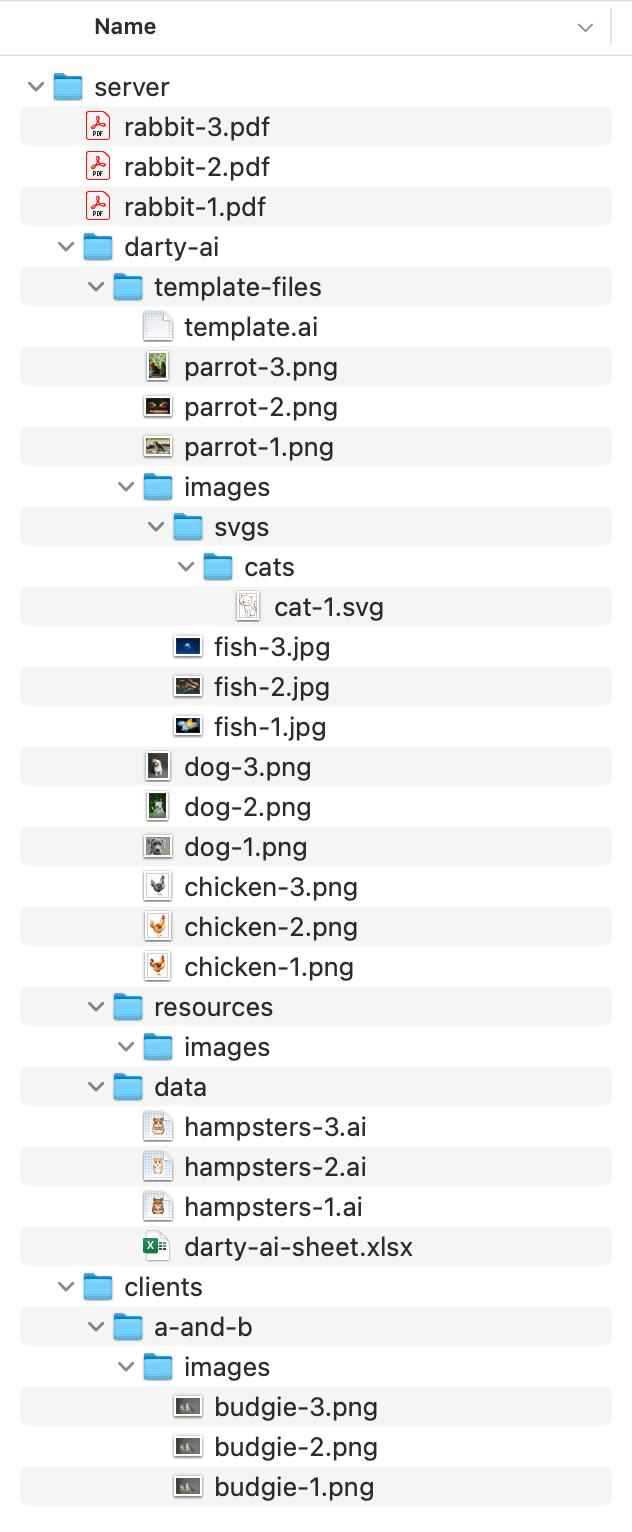
Click any file name in the table below to see exactly how Darty-Ai resolves its path based on the header configuration for that column. Compare the results with the folder structure shown in the image above.
Click the file name in any row to see how Darty-Ai resolves the path.
| A | B | C | D | E | F | G | H | I | J |
|---|---|---|---|---|---|---|---|---|---|
| image-1 | image-2 | image-3 | image-4 | image-5 | image-6 | image-7 | image-8 | image-9 | image-10 |
| place | place | place | place | place | place | place | place | place | place |
| path | path: images | path: ../images | path: {{TEMPLATE}} | path: {{TEMPLATE}}/images | path: {{DATA}} | path: {{SERVER}} | path: {{SERVER}}/clients/a-and-b/images | path: /Users/User/Downloads/template.ai | path: /Volumes/WD/Remote/assets |
| dog-1.png | svgs/cats/cat-1.svg | fish-1.jpg | parrot-1.png | chicken-1.png | hamster-1.ai | rabbit-1.pdf | budgie-1.png | turtle-1.png | ../goat-1.png |
| dog-2.png | /Users/User/Pictures/svgs/cats/cat-2.svg | fish-2.jpg | parrot-2.png | chicken-2.png | hamster-2.ai | rabbit-2.pdf | budgie-2.png | turtle-2.png | goat-2.png |
| dog-3.png | C:\Users\User\Pictures\svgs\cats\cat-3.svg | fish-3.jpg | parrot-3.png | chicken-3.png | hamster-3.ai | rabbit-3.pdf | budgie-3.png | turtle-3.png | goat-3.png |
🤓 Relative Path Generator 🤓
To help you generate relative paths, we have included a simple relative path generator tool below. Just select the
path variable, and paste in the absolute paths of the base and target folders to get the relative path that you can
use in your sheet.
You can easily copy the absolute path of a folder on your system by shift right-clicking the folder and selecting
"Copy as Path" (Windows) or using ⌘⌥C (Command Option C) (Mac).
Copy the resulting relative path and paste it into your sheet.
Example: If your template file is in /Users/User/server/darty-ai/template-files and your images are in
/Users/User/server/darty-ai/template-files/images, select the NONE or
{{TEMPLATE}} variable options, enter those absolute paths, and the generator will give you the relative
path ./images or {{TEMPLATE}}/images to use in your sheet header. In the data cells, you can
then just use the file name (e.g. dog.png) and Darty-Ai will resolve it to
{{TEMPLATE}}/images/dog.png when placing the file.
🗂️ Folder Path List Generator 🗂️
Use the tool to list of the files in a folder, including selected subfolders, it generates relative, absolute, or
{{TEMPLATE}}, {{DATA}}, and {{SERVER}} paths, view the results, and download
them as Excel or text. You can filter the folders to include. This can be super useful for
generating a list of images to place in your Darty-Ai spreadsheets and Illustrator templates.
Choose a folder to generate a list of its file paths. The default RELATIVE format needs no manually entered paths. If you choose ABSOLUTE or a Darty variable format, enter the appropriate absolute path below when prompted. Entering a path controls the output format; it does not select the folder. You must also click the "Choose folder" button.
📚 Documentation 📚
See our Place documentation for more details on how to use Place in Darty-AiMost Commonly Used Path Properties
-
mode– how the file is placed in or relative to a placeholder (mask, image, or bounds). -
fittingMethod– controls how the placed file is scaled to fit the placeholder (fit, fill, bounds , original). -
alignment– sets how the placed file aligns inside its placeholder. (topLeft, tl, top, t, topRight, tr left, l, center, c, etc.) -
clipping– whether the placed file is clipped to the placeholder’s bounds, by default it is clipped. -
unite– if true, multiple placeholders are treated as one when placing. -
keepBackground– keeps a placeholder’s background and stroke when placing an image. -
plainText / composer– how text files are placed (plain text vs formatted, and text composer options), there are numerous other options for placing texts. -
placeTagSearch– An alternative to placing a file, theplaceTagSearchparameter enables placing of any tagged referenced art object in the a placeholder.


Pingback: Getting Started – Darty-Ai