Illustrator and SVG Interoperability
SVGs have a certain magic: living both in the visual and data worlds. They can be made interactive in the web browser, coded with animations and downloaded to be opened in other applications. Illustrator is one of those applications, and its graphics features are not completely interoperable with the web-based SVG format. It tends to break text into separate characters, and has no idea about Illustrator’s ‘text-frames’ or ‘justification’.
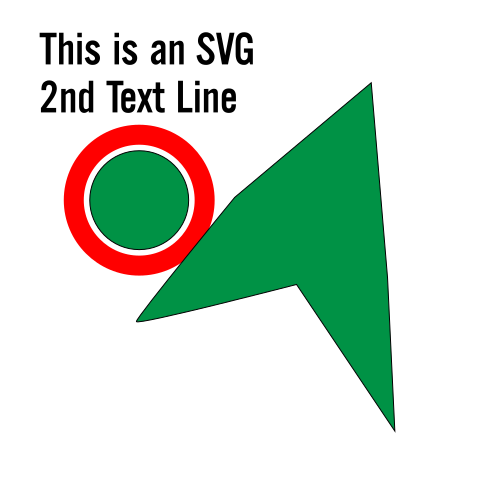
Same goes for its warps and effects; only SVG filters may work online, all others would get rasterized, or expanded
(in case of vector effects like Offset Path).
However, there is one key feature that is well-compatible between the SVG file and Illustrator: the
layer-object names. When items are named in the Layers panel in Illustrator, these names make their
way to the SVG output. Even more importantly: the reverse acts the same. When an SVG is opened in Illustrator, its id
or data-name attributes are brought back as Illustrator object-names.

This is precisely where Darty-Ai can take over and make the most use out of external SVGs. With its nameToTags method, all the artwork and its contents brought into Illustrator via the place method get automatically tagged for immediate manipulation via the data.
Sample Demo
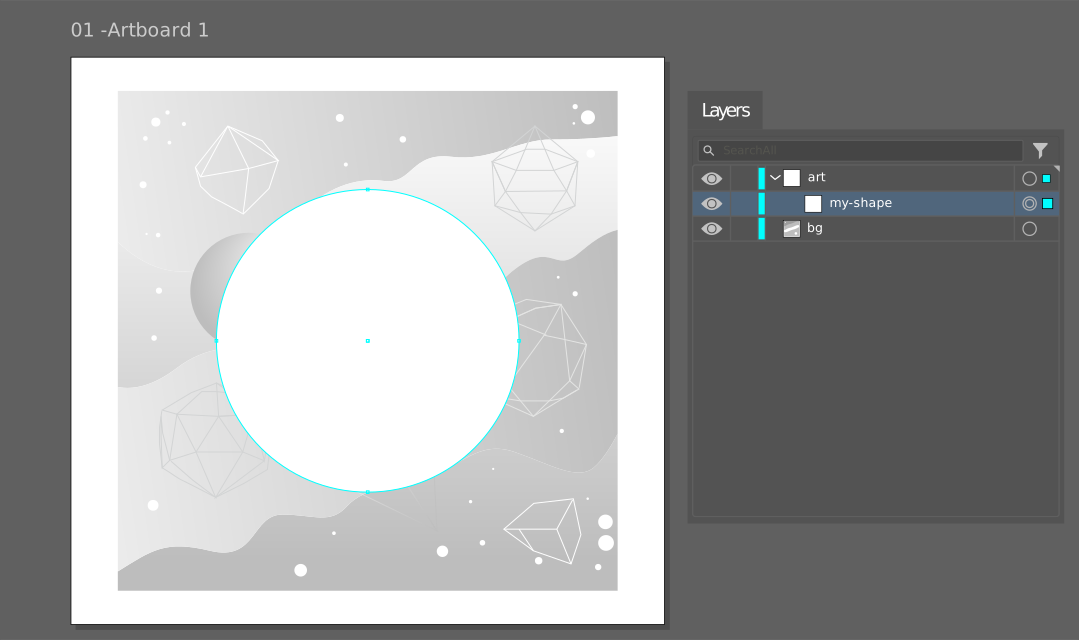
 This example starts with a very simple Illustrator document: a piece of background artwork and a single foreground
shape. The foreground object is labeled
This example starts with a very simple Illustrator document: a piece of background artwork and a single foreground
shape. The foreground object is labeled my-shape in the Layers panel, and it has also been tagged through
the Darty-Ai interface. As a result, the same identifier appears clearly in the Tags panel.
We’ll dynamically replace it with a series of external SVG shapes. From here, we’ll take things a step further. After each shape is placed, we’ll apply color programmatically—demonstrating how both geometry and styling can be driven entirely by data.
Data setup
For the data setup, we organize the spreadsheet into three method groups. The first group handles placing the external SVG into the placeholder and consists of three columns: one for the file reference, and two for placement parameters.
Header setup
| A | B | C | D | E |
|---|---|---|---|---|
| my-shape | my-shape | shape-color | ||
| place | nameToTags | appearance | ||
| filepath:shapes | clipping:false | fit:fit | * | fillColor |
place method
In the Darty-Ai header (row 3), we define a relative folder using the filepath keyword along with the
colon (:) to get filepath:shapes (so we don’t need full file paths in the sheet). We also include the
parameters clipping:false and fit:fit to ensure the artwork is placed cleanly and scaled
proportionally.
nameToTags method
The second group is a single column using the nameToTags method. Once the SVG is placed, this step automatically assigns tags to all nested elements based on their layer names; it's something that works seamlessly because SVG structure is preserved on import.
appearance method
Finally, the third group is another single column that applies styling. Here, we target specific tagged elements from the imported shape and assign a new color using the appearance method, completing the transformation from external geometry to fully styled artwork.
Populating Sample Data
We can now populate the sheet with a few sample rows (three is enough to get started) each referencing one of the SVG
files in our shapes folder. The nameToTags column requires no input, as tagging happens automatically
after placement. In the color column (the appearance method), however, we assign different values per
row. To demonstrate flexibility, we can mix formats: using standard hex codes in some rows and even CMYK
values in another, showing how Darty-Ai can interpret multiple color inputs seamlessly.
| A | B | C | D | E |
|---|---|---|---|---|
| my-shape | my-shape | shape-color | ||
| place | nameToTags | appearance | ||
| filepath:shapes | clipping:false | fit:fit | * | fillColor |
| shape-1.svg | 0 100 100 0 | |||
| shape-2.svg | #F0F | |||
| shape-3.svg | #00F |
External SVG Structure
Our setup includes a shapes folder located alongside the Illustrator template.
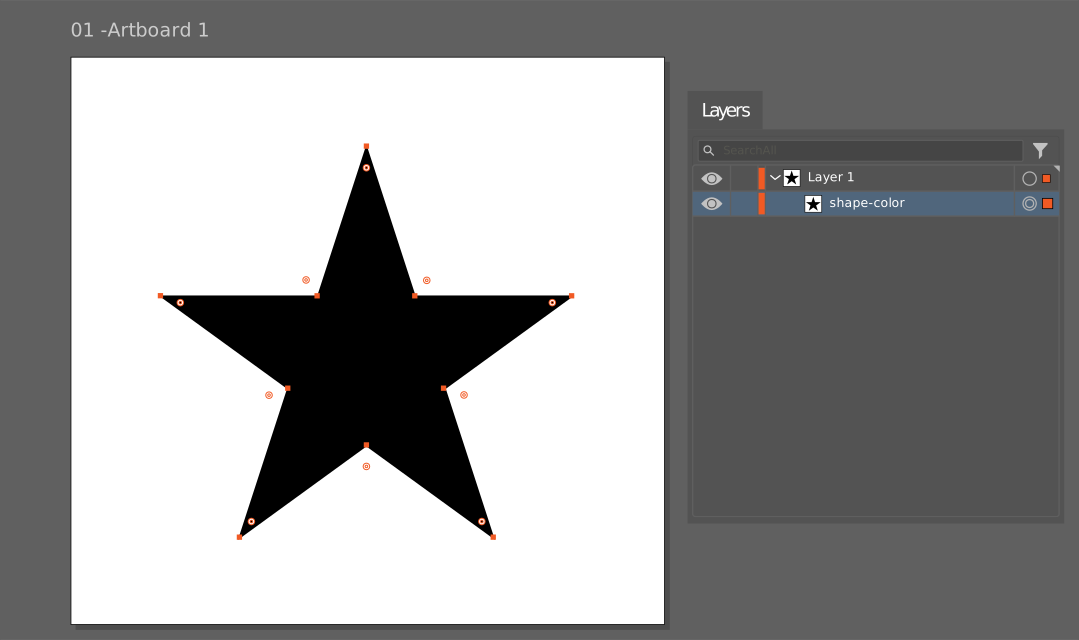
shape-color. This simple structure makes it easy to test. Once verified, the same approach can be extended
to more complex SVGs containing multiple elements.
Testing with Darty Preview
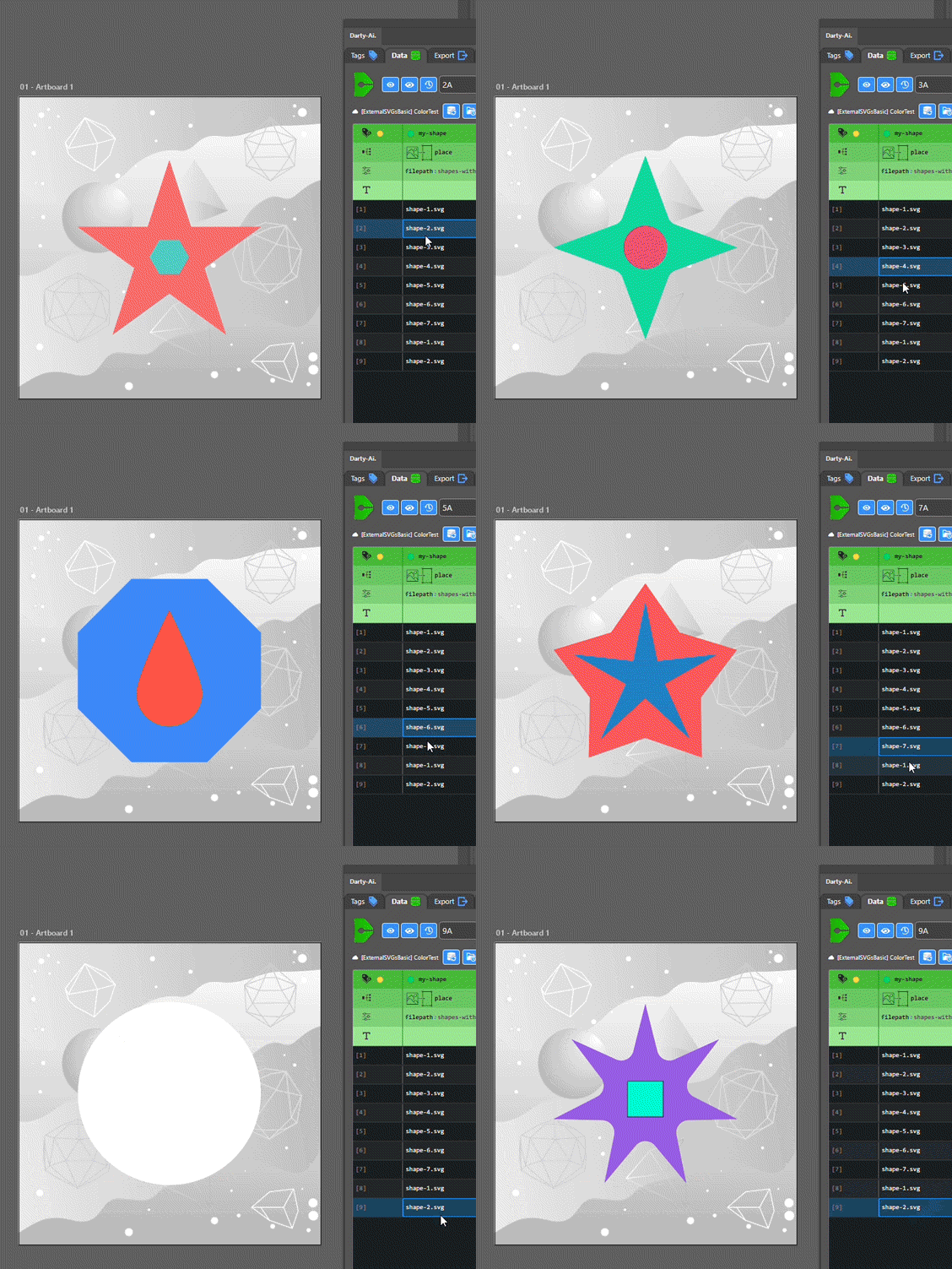
After preparing the data, we import it from Google Sheets, Excel, or even CSV. Activating the Darty preview (via the eye icon) allows us to step through each record. As we do, the placeholder updates dynamically—swapping in the external SVG and applying the assigned color for that row.



Using Multi-Element SVGs
To expand the workflow, we can introduce SVGs that contain multiple shapes. Each element should be uniquely named in Illustrator so that, upon export, those names become usable tags.
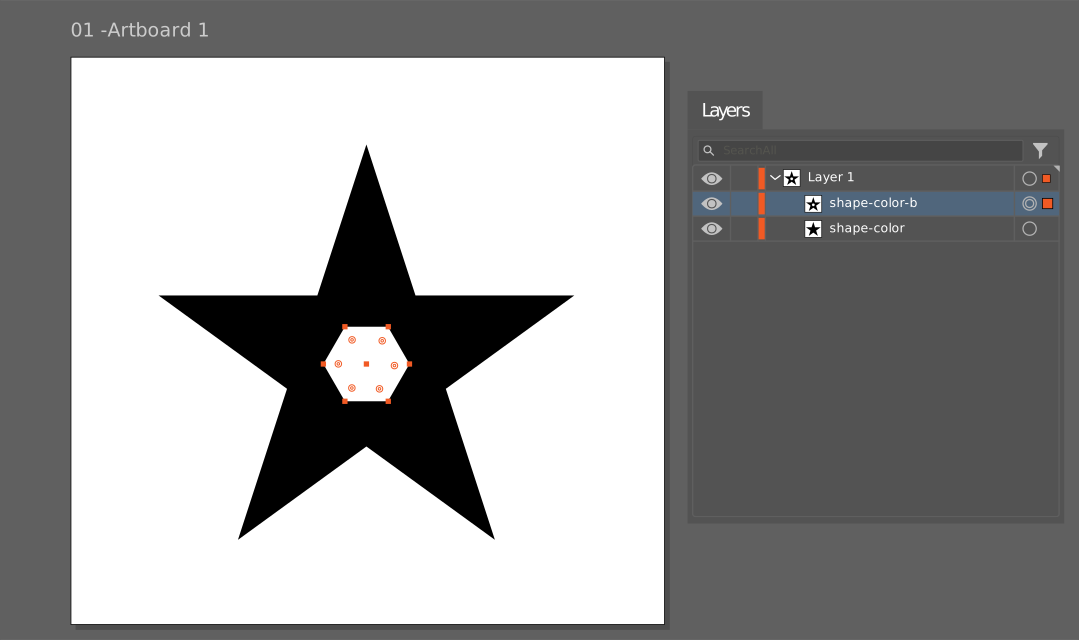
Keep in mind that duplicate layer names are automatically suffixed in SVG output, so using
clear, intentional naming (e.g., shape-color-b) ensures predictable targeting. Also note that sometimes
it’s possible that Illustrator layers get exported as SVG groups, which may appear as “Layer 1” but function simply as
grouped elements. It can be leveraged in more advanced setups.
With these multi-element SVGs, we can add additional color columns in the spreadsheet to control each part
independently. The result is that a single SVG file can generate a wide variety of visual outcomes based purely on
data.



Using AI to Generate Data
Once the workflow is stable, modern AI tools can accelerate data creation.
By providing example outputs, such as screenshots and existing color sets, we can prompt an LLM to generate new variations, including color palettes or structured data.
These results can be pasted directly into the spreadsheet, quickly expanding the number of usable records.

Here we provide ChatGPT a list of our SVG files so it knows what data to work with, as well as the current data-body, without the header. This is done because we want to append new rows to the data, without pasting over the entire sheet. It provides back the extra rows which are pasted directly back into the Google Sheet. In future tutorials, we’ll explore how this pairs with lookup tables and reusable datasets for even greater efficiency.
| A | B | C | D | E | F |
|---|---|---|---|---|---|
| my-shape | my-shape | shape-color | shape-color-b | ||
| place | nameToTags | appearance | appearance | ||
| filepath:shapes | clipping:false | fit:fit | * | fillColor | fillColor |
| shape-1.svg | #FF6B6B | #F4ECDC4 | |||
| shape-2.svg | #FFD166 | #118AB2 | |||
| shape-3.svg | #06D6A0 | #EF476F | |||
| shape-4.svg | #8338EC | #FFBE0B | |||
| shape-5.svg | #3A86FF | #FB5607 | |||
| shape-6.svg | #8AC926 | #6A4C93 | |||
| shape-7.svg | #FF595E | #1982C4 | |||
| shape-1.svg | #F15BB5 | #00BBF9 | |||
| shape-2.svg | #9B5DE5 | #00F5D4 |
The test is performed:
Conclusion









This demonstrates a foundational workflow: importing external SVGs into Illustrator and modifying their contents through structured data. It’s a powerful approach for variable data applications where consistent structure meets high variation such as: signage systems, apparel design, automotive graphics, and even as a precursor in certain kinds of data-driven 3D asset generation.