Introducing Darty-Ai 2.5
More design.
Less repeat.
You make the design. Darty-Ai helps turn it into the collection, the catalogue, the campaign.
Beautiful tables. Smarter variations. More control from the first layout to the final export. Discover what’s new across versions 2.0–2.5, right inside Adobe Illustrator.
For Adobe Illustrator 2025 and later · macOS & Windows
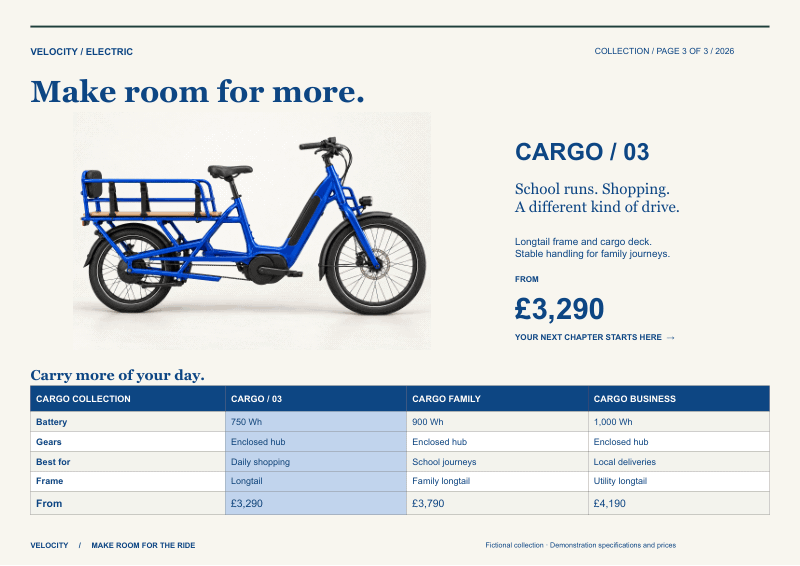
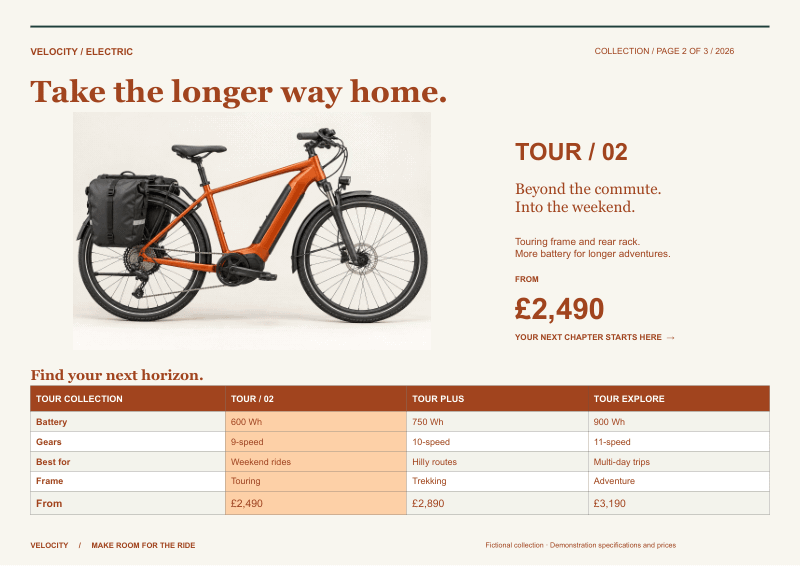
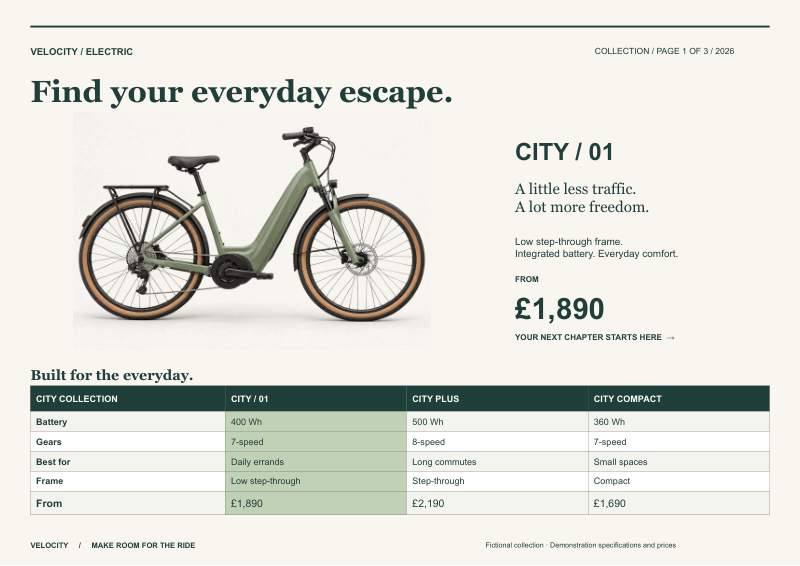
New table. Same starting layout.
Catalogues · Packaging · Apparel · Menus · Personalised print
The 60-second version
A bigger creative toolkit.
A shorter to-do list.
From a single beautifully formatted table to a whole set of product variations: start with the part of your day you want to make easier.
One design. A whole collection.
Change the words, pictures, colours and tables from your data.
02Tables. No spreadsheet required.
Open the panel, create a table and design directly in Illustrator.
03Codes with creative control.
Explore barcode formats, QR options, placement and editable vector output.
04Build it visually. Run it again.
Choose actions in Tools and let Builder create the method blocks in your sheet.
05A clearer view of your targets.
Native Tags, artboard annotations and an expanded Illustrator toolset.
06Useful straight out of the toolbox.
Compress pictures, collect file paths and apply artwork changes without a spreadsheet.
07Ready for print. Ready for the web.
Export multiple formats, compress images and manage metadata.
08Assets that arrive with context.
Carry searchable metadata into your digital asset management workflow.
09An easier way to get started.
Non-admin Mac and Windows installers, in-app updates and six languages.
10Every product gets its own details.
Create packaging variations with changing tables, barcodes and QR codes.
12Make the finish your own.
Layer fills, strokes and gradients, then reuse the look with graphic styles.
13Your design language, everywhere.
Control typography, images, appearances and reusable styles.
01 / From one design to every version
Create every version
from your data.
A different product should not mean rebuilding the same page. Connect your Illustrator layout to your sheet, then let each record supply the details.
Choose an example record
The picture, headline, description, prices, table content and colour theme change together.
One template + three spreadsheet recordsA sheet that fits your job.
Create and edit workflows in Sheet Builder, or bring in local workbooks and Google Sheets—including private sheets.
One layout. Or several.
Keep a shared starting design, or choose a different template per record when your collection needs more than one layout.
See it before you send it.
Preview the records and review validation issues, missing files and required values before the final export.
02 / Tables, designed
Real tables.
Right inside Illustrator.
Create and edit tables directly in Illustrator. No spreadsheet required. Open the dedicated Tables panel, start with a blank table and enter your content. Style it as part of your design, with optional Excel or Google Sheets data whenever you need it.
| FIND YOUR RIDE | CITY / 01 | TOUR / 02 | CARGO / 03 |
|---|---|---|---|
| Made for | Everyday freedom | The longer way home | Room for more |
| Battery | 400 Wh | 600 Wh | 750 Wh |
| Range, up to | 65 km | 110 km | 95 km |
| Drive | Rear hub | Mid-drive | Cargo mid-drive |
| Frame | Step-through | Trekking | Longtail |
| Your colour | Forest green | Burnt orange | Ocean blue |
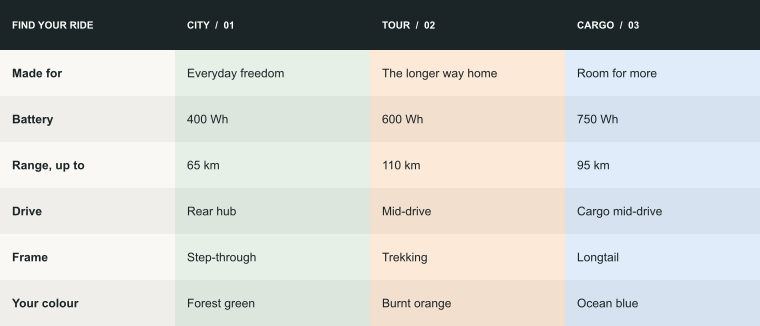
This is real HTML exported by Darty-Ai. Select the text. It’s a table, not a screenshot.
Download the HTMLStyle it your way.
Fills, gradients, borders, type, alternating rows and targeted cell ranges. Save styles to use again.
Let the content fit.
Merge cells, set headers and footers, and auto-fit rows or columns within your chosen limits.
Bring more than numbers.
Use Markdown for emphasis and attach artwork to cells so images move with the table.
Take it to the web.
Copy or save an HTML version with text, structure and supported styling. No need to rebuild the table by hand.
Use Tables on its own or as part of a data-driven workflow. HTML export is a snapshot; attached artwork and Illustrator effects stay in the Illustrator version. Example product specifications are fictional.
03 / Barcodes & QR codes
The right code.
Designed for your layout.
From the barcode on a product to the QR code on an event pass: create editable vector codes inside Illustrator, style the details and let your data supply a different value for every record.

EAN-13
Product and retail layouts, with readable digits below the bars.

Code 128
Alphanumeric references for labels, stock and order workflows.

QR Code
Connect printed artwork to a web address or other encoded content.

Data Matrix
A compact two-dimensional format for product and asset identifiers.

PDF417
A stacked format for carrying more information in a rectangular space.

Aztec
Another two-dimensional option for ticket and information workflows.
Real Darty-Ai vector output, shown with demonstration data. Also choose from UPC-A, UPC-E, EAN-8, ISBN, Code 39, Code 93, ITF-14, DataBar variants, Micro QR, rMQR, MicroPDF417, MaxiCode and more.

Classic square modules in deep blue. Choose a thumbnail to compare two styles of the same working code.
Choose symbol and background colours, control finder and data parts independently, and add Illustrator effects. The plum example uses live Round Corners on the finder rectangles and each data square.
Download the selected SVGFit the space precisely.
Set width, height or overall size; adjust bar height, padding and quiet zones. Work in points, millimetres, centimetres or inches, with anchors and rotation to suit the layout.
Make the text part of the design.
Show or hide human-readable text. Choose its font, size and alignment, adjust the gap beneath the bars, or fit the text to the barcode width.
Choose the right QR settings.
Select error correction from L, M, Q or H. Control QR data and finder modules independently, and choose the options supported by each format.
Keep control of the parts.
Name and tag the symbol, text, background, finder and data parts. Target them again with other Darty-Ai tools, or unite supported parts when your workflow calls for it.
Build GS1 Digital Link QR codes.
Enter a GTIN and supported product details such as batch, serial and expiry information. Choose the resolver domain and create the corresponding Digital Link QR code.
Go from one code to a whole run.
Preview and validate the settings, place the result into tagged artwork, or add the configuration to your sheet. The next row can bring the next product, serial or destination.
04 / Sheet Builder
You choose the changes.
Builder creates the setup.
Turn a job you repeat into a workflow you can reuse. Choose tools and configure their options visually, then add those actions to your sheet. Build the setup inside Darty-Ai without writing code or assembling every property column by hand.
EXAMPLE: A PRODUCT LABEL
- 1Choose what to change.
Target the product-name frame. Open the Text tool and configure replacement and fitting.
- 2Add the action to your sheet.
Builder inserts the method block and its configured fields. Add Place for the photo and Barcode for the product code.
- 3Fill in the differences.
Enter each product’s name, image path and code value. Keep shared fitting and colour choices in the header defaults.
- 4Preview. Refine. Run again.
Check each design in Illustrator, save the workbook and reuse the setup for the next collection.
Illustrated workflow. Choose the tools and fields your project needs.
Learn the options as you build.
The Tools controls help you configure text, pictures, appearance and more. Try a supported action on your current artwork, then add the configured operation to your sheet when you want to repeat it.
A row is one version of the job.
Keep the actions across the sheet and put each product or person in a data row. One row might supply a new name, photo and price; another can also choose a different Illustrator template.
Change a shared setting once.
Set common values in the headers—such as text alignment or image fitting—and use row values for exceptions. Your sheet stays easier to read and maintain.
Keep editing where you work.
Add, remove and reorder rows or columns, resize fields, search, save and undo/redo. Open existing workbooks or connect Google Sheets when your data already lives elsewhere.
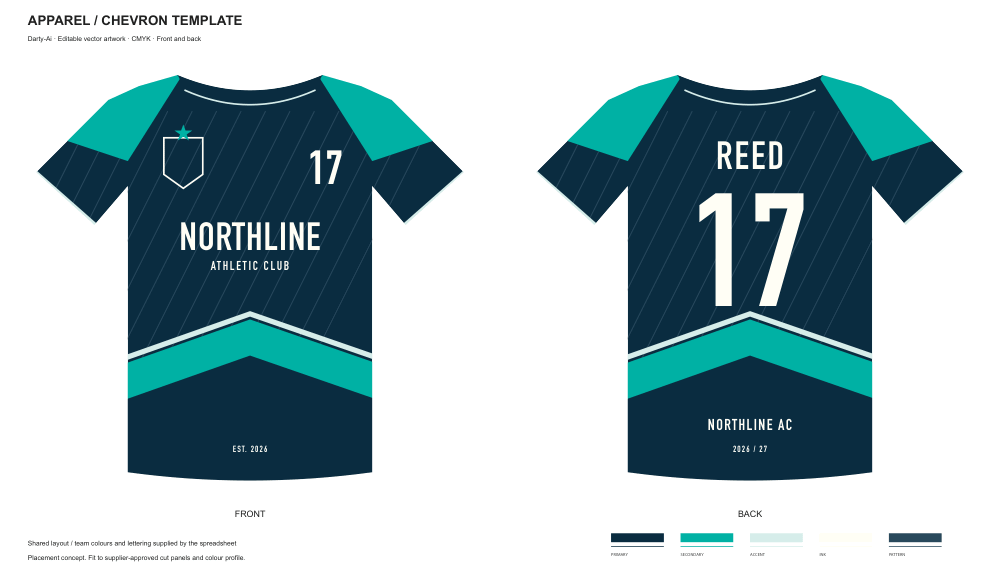
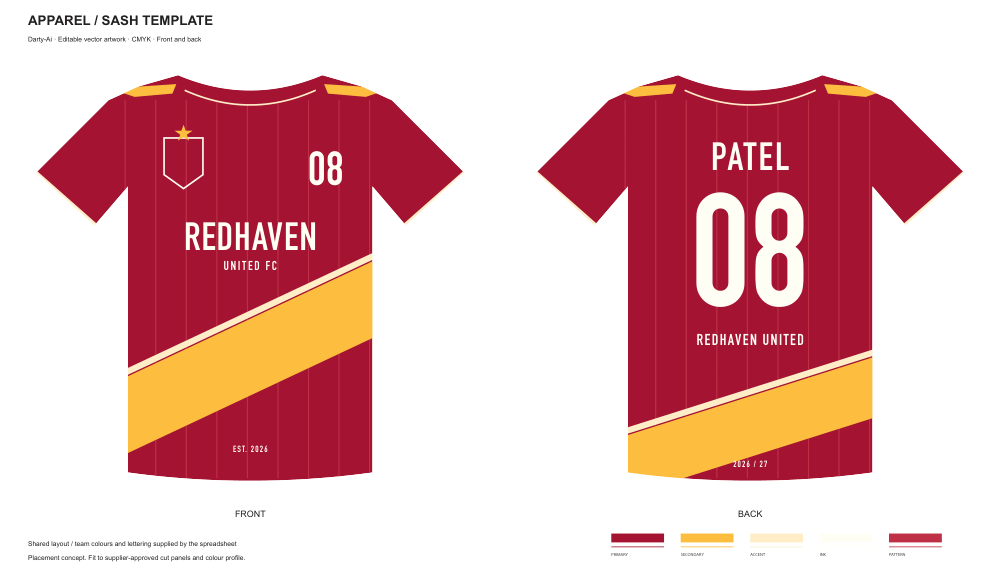
MULTIPLE DESIGNS, ONE RUN
A different layout is just another record.
Use the template field to choose the starting document for each row. This apparel workbook produces three chevron designs and three sash designs, with different names, numbers and colours across the two templates.
05 / A new way to see what goes where
Find it. Tag it.
Make it work for you.
The new native Tags panel, Tag Tool and on-artwork annotations make the connection between your design and your data easier to see—and easier to edit.
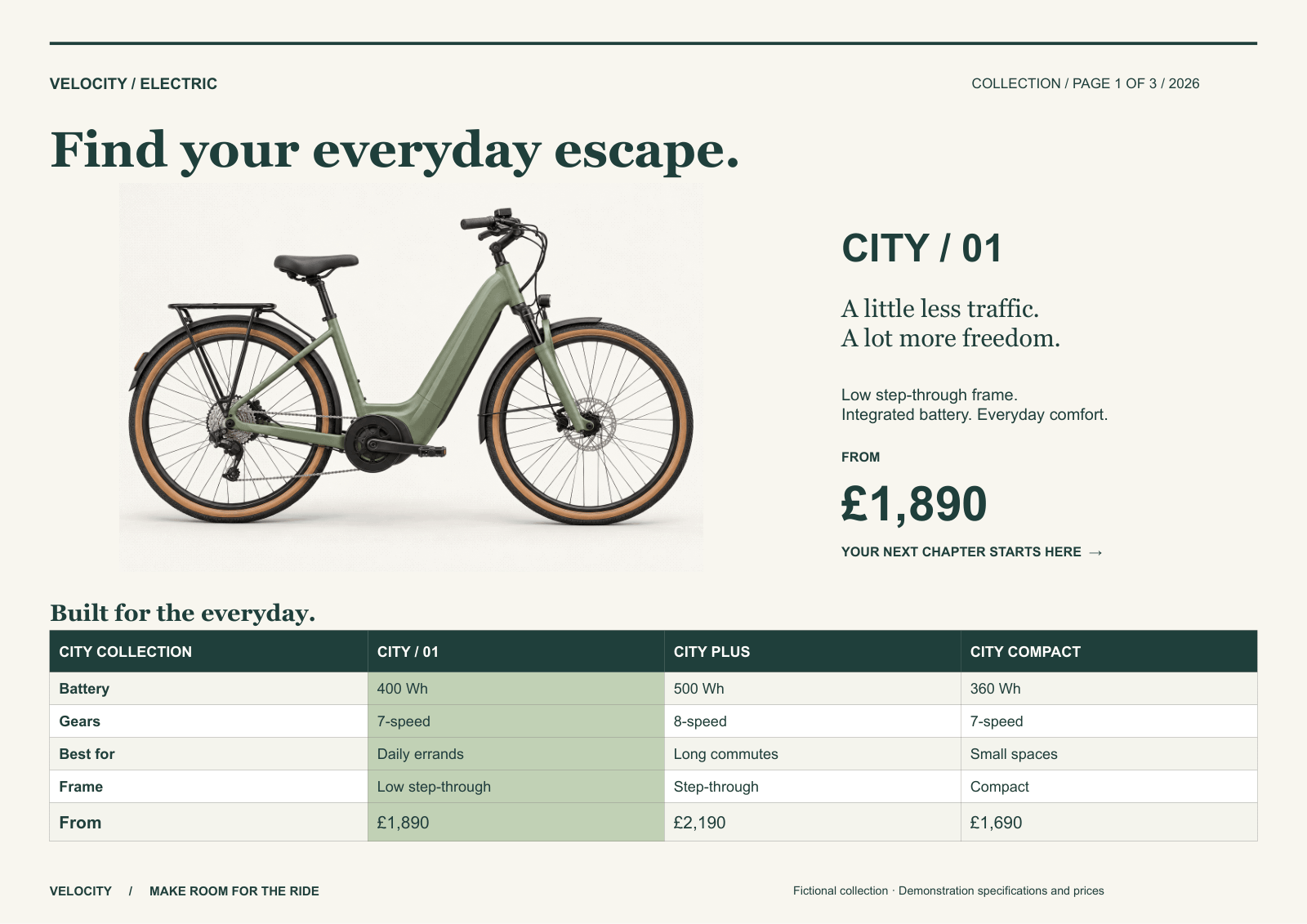 headlineproduct-imagepricespecifications
A clearer connection to your artwork.
Browse the hierarchy and thumbnails, edit tags inline, or add and remove tags across a selection. Turn existing object names into tags and show annotations directly over the artwork.
More Illustrator tools, ready to use.
Apply supported operations directly to your document, or add them to your sheet from the Tools workspace.
06 / Useful tools. Ready when you are.
Open a tool.
Get the job done.
You do not need to generate a spreadsheet to use Darty-Ai. Build a table, compress a folder of pictures, create a barcode or apply an artwork change directly. Set up a repeatable sheet when your job needs one.
The table tool Illustrator deserves.
Open the dedicated Tables panel, create a blank table and enter your content. Select cells, style text and borders, add rows, merge headings and adjust the layout while you see the result in your document.
Make a price list, a specification sheet or a nutrition panel as part of everyday design work. Excel and Google Sheets are there when you want them.
See the table exampleDrop in your images.
Take out the extra weight.
Drop PNG or JPEG files—or a whole folder—into Compress Images. Select the files, choose a compression level and destination, then start the batch. Watch progress and compare the original and finished sizes.
Save copies or replace originals. Filter a folder tree, preserve its structure when saving to another folder, and add prefixes, suffixes or naming replacements. No workbook, template or export job is required.
Measured on the plum rounded QR example: 58% smaller, with identical decoded pixels. Results vary by image. This page’s new PNGs use the same compression tool.
TOOLS → UTILITIES → PATHS
A folder of pictures.
A ready-to-use list.
Preparing a catalogue with a hundred product photos? Scan the folder, filter the files and select the ones you need. Paths builds the list so you can copy it or save an XLSX or TXT file.
Choose absolute paths, relative paths or paths based on your file variables. Bring the results into your sheet’s image fields without copying every filename by hand.
city-green.pngtour-orange.pngcargo-blue.pngPhotos/city-green.pngPhotos/tour-orange.pngPhotos/cargo-blue.pngTHE EXPANDED TOOLS WORKSPACE
Small tasks, handled.
Repeatable jobs, ready to build.
Configure supported operations visually and apply them to tagged artwork in the active document. Use the same setup in Builder when those changes need to happen again.
Arrange a set of badges.
Duplicate the artwork, align the results and distribute the spacing. Use Arrange or Z-Order to put the right elements in front.
Duplicate · Align · Distribute · ArrangePrepare artwork for delivery.
Fit artwork to bounds, manage layers and artboards, or configure clipping, compound paths, expansion and rasterization for the job.
Fit to Bounds · Layers · Artboards · ClippingCarry the brand across a range.
Build an appearance, reuse a graphic style, update swatches or merge duplicates. Choose a font with a searchable live preview.
Appearance · Graphic Style · Swatches · Fonts07 / Finish the job
One workflow.
All the right deliverables.
The print file. The web image. The editable vector. Set up the outputs your project needs, with control over raster resolution, compression and metadata.
Your design, in the formats you need

Compression that fits your workflow.
Use Compress Images on its own for existing PNGs and JPEGs, or add compression to your raster export settings. Choose quality levels and check progress, original sizes and savings. See how the standalone tool works.
Made with the tool we’re talking about: this page’s new PNG artwork is compressed using Darty-Ai.
Deliver the whole job your way.
Export documents, selected artboards, a selection or tagged artwork. Set up multiple jobs with their own formats, folders and filenames. Use dynamic names so each record lands where it belongs.
Choose raster resolution or scale, transparency where supported, padding or bleed, and the format-specific options your delivery needs. Use PDF presets and WebP lossy or lossless output.
08 / XMP metadata & digital asset management
Make every asset
easier to find and use.
A finished file should carry more than its artwork. Add consistent titles, descriptions, keywords, creator and copyright information as you export—so the details travel with the deliverable.
09 / New installers & everyday usability
Less setup.
More time designing.
Getting started should feel like the beginning of the job. The new Mac and Windows installers support installation for your own user account, without administrator rights for a normal per-user install.
macOS
A per-user installation, with everyday access through Illustrator’s Window → Darty-Ai submenu.
Get the Mac installerWindows
Install under your own account, without requiring a system-wide administrator installation.
Get the Windows installerUpdates where you work.
See when an update is available, then download and install it from within Darty-Ai. Keep up with improvements without hunting for the right installer.
Six interface languages.
Use Darty-Ai and the native Tags panel in the language that suits you.
Connect your existing data.
Use public Google Sheets or connect private sheets with OAuth or a service account. Mainline handles cloud access in the native plug-in, with encrypted credentials and shared network settings, so a separate cloud helper is no longer required.
Get help with setup.
If Illustrator has not loaded the native plug-in, follow the in-panel setup and repair guidance. Choose the plug-in folder when prompted, then restart Illustrator to load it.
Use the assets already in your document.
Supported tools can draw on document swatches, styles, symbols, layers and artboards. Reuse the document’s existing character, paragraph and graphic styles where supported, so new content belongs with the artwork already on the page.
Darty-Ai 2.5 requires Illustrator 2025 or later. If prompted during setup, choose a separate plug-in folder and restart Illustrator. Removing an older administrator-installed version may still require administrator access.
10 / Product by product. Market by market.
A whole range.
Every detail in place.
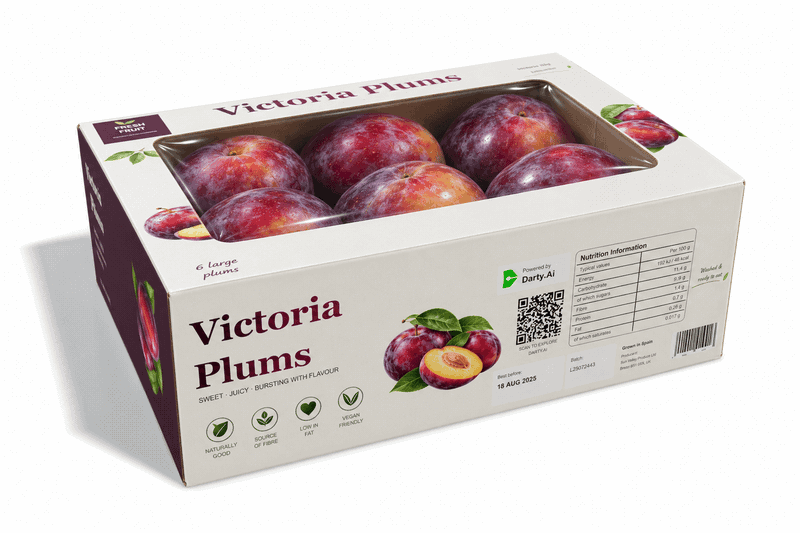
The fruit changes. So do the facts.
Feed product names, pictures, supplied translations and nutrition data into your layout. Let the table change with the product—even when one needs more rows than another.
Build barcodes and QR codes with preview and validation, GS1 Digital Link support, and controls for colour, human-readable text, fitting and placement.
Explore the packaging exampleYour source data supplies the translations and product-specific code values.
11 / Text, images & appearance
More than swapping
a name and a picture.
Real production work needs finer control: the long product name, the rotated label, the brand gradient, the photo that must fit its frame. The new controls give you more ways to handle those details.
12 / Appearance, gradients & graphic styles
Build the look once.
Make it your signature.
A product badge needs more than a flat colour. Layer its fills and strokes, shape its gradient, add supported effects and control how the layers blend. Reuse a named graphic style—or take an appearance from tagged source artwork—to carry that finish across the design.
Shape the gradient.
Edit stop colours and positions. Choose linear or radial gradients, then adjust direction, length or radial geometry. Use gradients on fills and strokes.
Control the whole stack.
Add and reorder fills and strokes, refine dashes and arrowheads, and set opacity, blending and effects. The rounded QR example shows a real Illustrator effect applied to Darty-Ai artwork.
Reuse more than a colour.
Apply a named graphic style or derive the appearance from a tagged source object. Create, rename and merge swatches to keep the palette manageable across a production job.
13 / The details still belong to you
Automate the changes.
Keep your signature.
A new name. A new number. A whole new team. Your design stays intentional.
Richer appearance controls and graphic styles help carry the look across variations. Text fitting and image placement give changing content a place to belong.
- Replace and fit text, with detailed typography controls.
- Place pictures with fitting, anchor and rotation choices.
- Apply fills, strokes, effects and reusable graphic styles.
- Work with process, global and spot colours.
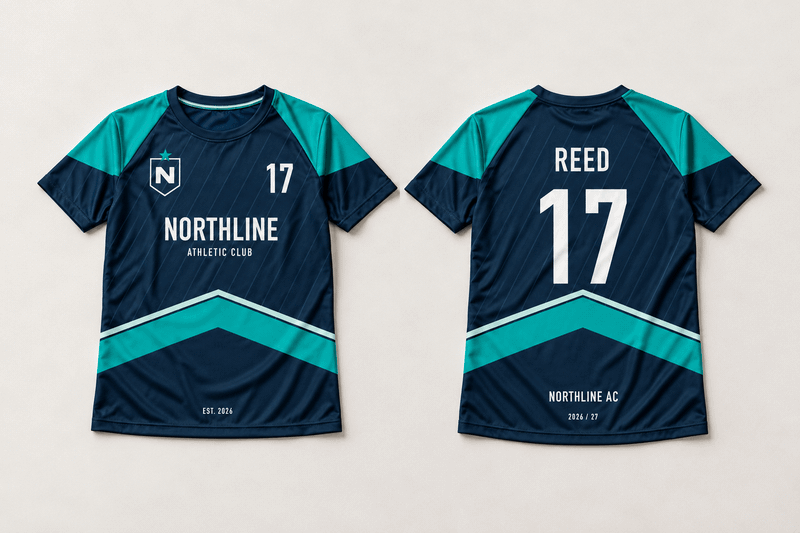
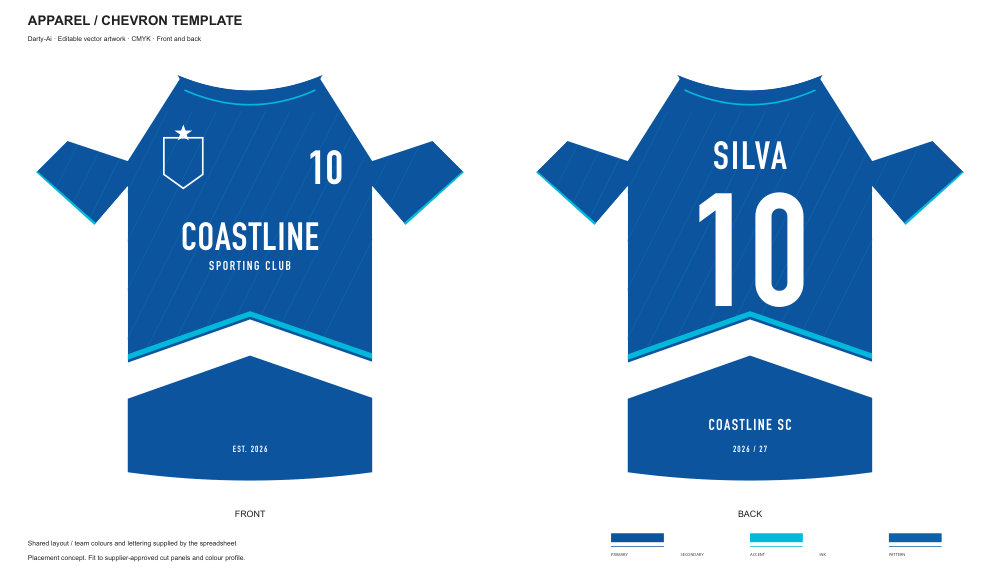
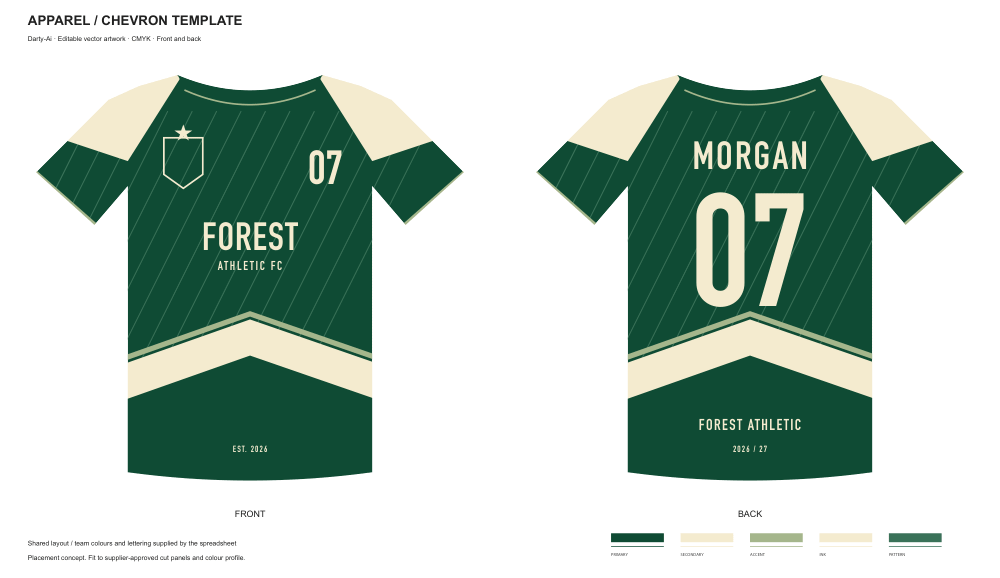
14 / Think beyond the next version
What’s on your desk?
A menu refresh. A new property. A seasonal promotion. The same ideas work across the projects that fill your day.
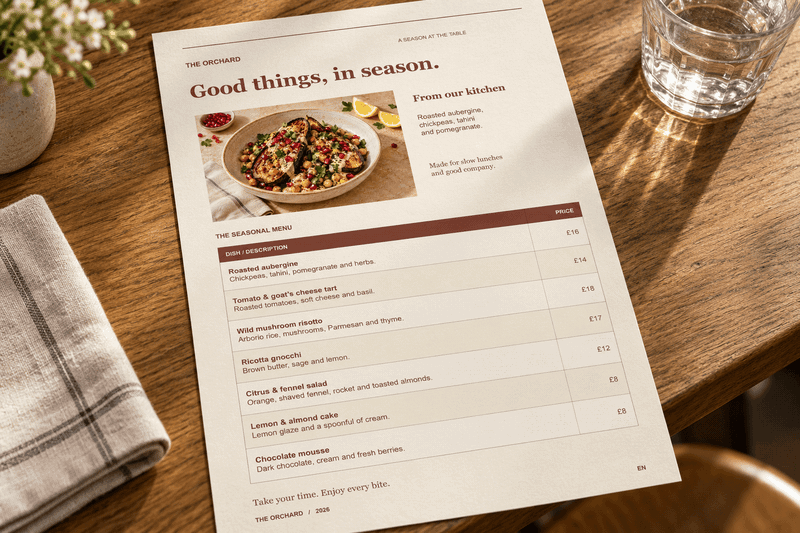
The seasonal menu.
Change the dishes, prices, photographs and supplied language content.

The next listing.
Give each property its own photographs, description and specifications.

The next campaign.
Turn changing products and offers into a consistent set of branded artwork.
Illustrative sample projects. Mockups show presentation possibilities; the DIY Kits include the editable layouts and data.
15 / Preview, validation & file checks
Catch the small things
before they become a big job.
When a workbook drives dozens of variations, a missing picture or mistyped property is worth finding early. Darty-Ai helps you inspect the data and the artwork before delivery.
Check the sheet.
Validation highlights invalid tags, methods and properties, missing required values and missing files. Jump from an issue to the affected header or record.
Inspect the sources.
Use image thumbnails, file details and path-aware checks. Relative workbook and template paths help keep a job’s assets together.
Preview the result.
See the selected record applied to the Illustrator artwork. Review the preview issues log, make changes and check another variation before export.
16 / The deeper look / Versions 2.0–2.5
More new ways
to get there.
The headline features are only the beginning. Explore the additions and improvements across the whole Darty-Ai workflow.
Build the job your waySheet Builder · data sources · multiple templates
Sheet Builder inside Darty-Ai
Create and edit your automation workbook, add method blocks, manage rows and columns, reorder fields, search, save, and undo or redo changes.
Local files and Google Sheets
Load local and recent workbooks or public and authenticated private Google Sheets. Choose the worksheet you need and keep source references available for reloading.
A different template for each record
Mix layouts in the same workflow by selecting a template per row. Use shared header defaults for common settings and record values for the differences.
A clearer view of your data
Search loaded data, inspect image thumbnails and file details, and work with paths relative to the workbook or template.
Make tables part of the designLive editing · formatting · artwork · HTML
A dedicated Tables panel
Create a table from scratch without a spreadsheet, or bring in spreadsheet, CSV, TSV or pasted data. The dedicated Tables panel edits live; the Table tool in the main Tools workspace lets you configure an operation and apply it when ready.
Structure that stays editable
Use merged cells, headers and footers, row and column sizing, auto-fit with limits, padding and borders. Insert, delete, split, sort or distribute rows and columns. Trim empty edges, reload sources and save table data to Excel. Preserve supported source formatting and spreadsheet merges on import.
Formatting with more range
Apply fills, gradients, typography and reusable table styles. Style selected cells and ranges, alternate rows or columns, and use Markdown for emphasis within cells.
Keep artwork with its cell
Attach artwork from files, symbols or tagged objects to cells, with placement and scaling controls that follow the table layout.
Take the table to the web
Export actual HTML with table structure, merged cells, text and supported styling. Copy a fragment for your site or save a standalone HTML file. It is a snapshot, not a live connection; attached artwork and Illustrator effects are not included.
Give every version the right finishText · placement · colour · appearance
Text replacement and fitting
Replace frame contents or find specific text, with regular-expression and advanced replacement modes when needed. Fit by changing spacing and glyph scaling while retaining font size, or use other fitting controls. Parse Markdown and simple HTML into formatted Illustrator text.
More control over placed artwork
Place by file path or tagged artwork, choose fitting and anchor points, control rotation, select a specific PDF page or Illustrator artboard, and decide how the original or background artwork is handled.
Rich appearances and graphic styles
Build fills and strokes, dashes and arrows, opacity, blending and effects. Apply graphic styles or derive an appearance from tagged source artwork.
Colour choices that fit the job
Work with RGB, CMYK, Lab and other colour models, process/global/spot colours and library swatches. Create, rename or merge swatches, and edit linear/radial gradients on fills and strokes. Use range-specific colours in tables.
Build better product and packaging workflowsBarcodes · QR codes · variable content
A barcode builder with feedback
Configure and preview codes with validation, quiet zones, human-readable text and font choices, colours, fitting and placement controls.
GS1 Digital Link QR support
Create QR codes that carry GS1 Digital Link data, alongside the barcode workflow. Set the product-specific values in your source data.
Product and language editions
Feed different names, supplied translations, photos, nutrition values and code contents into the same layout. Tables can have different row counts as the data changes. Darty-Ai uses the language content you supply; it does not translate it automatically.
Use more of Illustrator from one workspaceTools · tags · transforms
Expanded Tools workspace
Apply supported operations directly to the active document without generating a spreadsheet. Add configured operations to Builder when you want to repeat them.
Paths and compression utilities
Create filtered absolute, relative or variable-based path lists from folders and save XLSX/TXT. Drop files or folders into Compress Images to compress PNG/JPEG batches independently of export jobs.
Unified Illustrator menu
Open Main, Tables and Tags through Window → Darty-Ai. Main and Tables retain their panel state when hidden and reopened.
Arrange and build artwork
Align, Distribute, Pathfinder, Layers, Artboards, Duplicate, Arrange, Fit to Bounds, Rasterize, Expand, Clipping and Compound Path are just some of the many tools available for building and organising artwork.
A native Tags panel and Tag Tool
Browse the artwork hierarchy with thumbnails, edit tags inline, and add or remove tags across a selection. Use Tag by Name or Name by Tags to prepare existing artwork. The native Tags panel also supports all six interface languages.
See targets on the artboard
Show or hide tag annotations over your artwork, select a target with the Tag Tool and edit its tags. Use View → Show/Hide Darty-Ai Annotations; the Tags controls share the same visibility state. Transform controls also include simplified shear.
Deliver the files the job calls forExport jobs · compression · XMP
Multiple export jobs
Set up the outputs needed for print and digital delivery, including PDF, SVG, PNG, JPEG and WebP, with the relevant format and raster-resolution settings.
Built-in image compression
Compress PNG and JPEG files in batches, or configure compression for raster exports. Choose quality settings, follow progress and inspect file sizes and savings.
WebP for modern websites
Export WebP with lossy or lossless settings and transparency, alongside the other image formats. Choose the format that fits your delivery requirements.
Control the metadata
Merge XMP with template metadata, preserve it, replace it or remove it. Populate supported metadata fields with values from your job.
Work with more confidenceValidation · preview · languages · updates
Find issues before the final export
Review preview issues and sheet validation for tags, methods, properties, required values and missing files. Jump from the issues log to the affected data.
Useful everyday refinements
Search and preview fonts, inspect file thumbnails and metadata, and use path-aware checks while preparing a run.
Work in your language
The Darty-Ai interface and native Tags panel support English, Spanish, French, German, Dutch and Italian.
Simpler setup and upkeep
Non-admin installation and in-app updates help you get started and keep current. Mainline Darty-Ai 2.5 requires Illustrator 2025 or later.
17 / Questions & answers
A few things
you might be wondering.
Do I have to automate a whole job to use Tables?
No. Use the dedicated Tables panel to create and edit a table directly in Illustrator. Bring it into a spreadsheet-driven workflow when that suits your project.
Can I start with my own Illustrator design?
Yes. Set up the artwork targets and connect them to your data. Or start with a DIY Kit to explore a working example before adapting the approach to your own layout.
What do I need to run Darty-Ai 2.5?
Adobe Illustrator 2025 or later on macOS or Windows, and a Darty-Ai account. Features and allowances depend on your plan. See the available plans.