Darty-Ai’s QR / Barcode Generator
Darty-Ai’s QR / Barcode Generator makes finished, editable barcodes inside Illustrator: select a placeholder, choose a format, type the data, and apply. Make one code for one design, or connect the same settings to a spreadsheet and let every row produce its own label.
In this example, a fruit label needs a batch barcode and a QR code. We make the first barcode by hand, try the formats and styling options on a practice board, build a GS1 Digital Link, and then let a twenty-row sheet fill in the labels.
1. Make one barcode
Open the Darty-Ai panel and choose Tools → Barcodes → QR / Barcode Generator. Draw a rectangle where the code should go, or use one that is already in your template. Then click each step below to see where it happens.
The barcode replaces the placeholder and stays ordinary Illustrator artwork. You can move it, recolor it, or open it up like any other vector object.
2. Choose a format
Different jobs call for different codes, and they all come from the same Format list. Linear codes such as EAN-13, UPC-A and Code 128 hold a short number or code in a single row of bars. Two-dimensional codes such as QR Code, Data Matrix and Aztec hold more in a small square, including web addresses.
Some formats have a Variant. DataBar, for example, offers Omni, Stacked and Expanded versions. Each format checks its own data: an EAN-13 accepts digits only, while Code 128 also takes letters and punctuation.
| Format | Kind | Often used for | Holds |
|---|---|---|---|
| EAN-13, UPC-A, UPC-E | Linear | Retail checkout | A product number (GTIN) |
| Code 128 | Linear | Batch codes, shipping and warehouse labels | Letters, digits and punctuation |
| Code 39 | Linear | Industrial and inventory labels | Capital letters, digits and a few symbols |
| ITF-14 | Linear | Outer cartons | A 14-digit GTIN |
| DataBar | Linear | Small items and fresh produce | A GTIN in less space |
| QR Code | 2D | Links for phone cameras | A web address or text |
| GS1 Digital Link QR | 2D | Packaging that serves shoppers and the supply chain | A link carrying the GTIN, batch and dates |
| Data Matrix | 2D | Small parts, electronics, healthcare | Dense data in a very small symbol |
| PDF417 | Stacked | Transport and identity documents | Longer text |
| Aztec | 2D | Tickets and boarding passes | Text, without needing a quiet border |
All supported barcode and QR formats
Darty-Ai supports the following format names and variants, grouped here for easy reference:
- QR codes: QR Code, Micro QR Code, rMQR Code, GS Digital Link QR Code.
- Other matrix and stacked codes: Data Matrix, Aztec, Aztec Code, Aztec Rune, PDF417, Compact PDF417, MicroPDF417, MaxiCode.
- Retail and publishing: EAN/UPC, EAN-13, EAN-8, EAN-5, EAN-2, ISBN, UPC-A, UPC-E.
- DataBar family: DataBar, DataBar Omni, DataBar Stacked, DataBar Stacked Omni, DataBar Limited, DataBar Expanded, DataBar Expanded Stacked.
- General linear codes: Codabar, Code 39, Code 39 Standard, Code 39 Extended, Code 93, Code 128, ITF, ITF-14.
- Specialized codes: Code 32, Pharmazentralnummer, DX Film Edge.
Some entries are family names or aliases: Aztec and Aztec Code refer to the same family, and GS Digital Link QR Code is the GS1 Digital Link QR workflow shown above. The available choices depend on the installed generator. See the barcode format reference for descriptions and guidance on choosing a format.
3. Match the design
A barcode has to scan, and it also has to belong in the design. The Generator’s appearance settings cover both. Point at a setting to find it in the panel and in the result.
Bar and background color
Module Color sets the bars or modules, and Background Color fills the area behind them. For each one, type a color value such as maroon or #6b0f1a, or choose a document swatch under Swatch Name so the code follows your brand palette.
Human-readable text
The digits under a retail barcode are the Human Readable Text. Choose Show text, then set the Font, Text Size and Tracking to suit the label. Text Gap and Horizontal Scale fine-tune the fit.
Try it: colors and the check digit
Type the first twelve digits of an EAN-13 and pick two colors. The thirteenth digit is the check digit, which a scanner uses to confirm it read the number correctly.
4. Place it precisely
Targeting decides where the code goes. Apply to Selection uses whatever is selected. To point at artwork by its Darty-Ai tag, enter the tag in Tag Search; Use Selection Tags fills it in from the selected object. A tag is what lets the same setting work later from a sheet, with nothing selected.
Placement decides what happens to the target. Replace Art swaps the placeholder for the code. Place in front keeps the placeholder and puts the code on top of it.
Sizing Mode decides how big it is. Module-based sets the width of a single bar, for an exact print dimension. Fit to target scales the code to the placeholder and lets the rectangle decide. Fixed size sets the overall size directly.
5. Build a GS1 Digital Link
A GS1 Digital Link is a web address that carries product data: the GTIN, and optionally the batch, serial number and dates. One QR code can then take a shopper to a product page and give the supply chain the identifiers it needs.
Choose the format GS1 Digital Link QR and the Generator shows a field for each part, so you do not write the link yourself. Enter the product’s GTIN as 13 digits and Darty-Ai validates it and adds the check digit. Add a Batch/Lot and an Expiry date, and the finished link appears in the URL preview, ready to encode.
Try it: build a link and scan it
Change the fields and watch the link and its QR code follow. The colored underlines show which field each part of the link comes from.
01GTIN10batch or lot17expiry date, as YYMMDD
The numbers 01, 10 and 17 are GS1 Application Identifiers, the same ones used in other GS1 barcodes. The code drawn on this page is a plain QR code of the link; Darty-Ai packs the digits more efficiently, so its symbol for the same link is usually a little smaller.
6. Let a spreadsheet do the work
One barcode at a time is fine for a single design. For production, put the data in a sheet. This one holds twenty labels: five products, four batches each. The top rows hold the tag, the method and its properties. Each row below is one label, with the product name, the batch code that becomes a barcode, and the GTIN and best-before date for the QR code.
Load the sheet in the Data tab. The tag markers turn green when every tag in the sheet is found in the artwork. Click the lightning bolt on a row, and the title, its color and both codes are redrawn from that row. Click the next row, and it is a different product.
The barcode and QR settings are the same ones you used in the Generator. To set a code up visually and reuse it for every row, build the sheet in the Sheet Builder, where a Barcode method block holds the format, target and appearance, and each row supplies the data.
Try it: click a row
These are the first five rows of the sheet. Click a row, or its lightning bolt, and the label is redrawn from it, as it is in Illustrator.
Rows 1 to 5 of 20. Columns F and G are left out.
| A | B | C | D | E | |
|---|---|---|---|---|---|
| product-title | qr | ||||
| text | barcode | ||||
| replace | format:GS Digital Link QR Code | gtin | batch | bestBeforeDate | |
| product | gtin | batch | bestBefore | ||
| Delicious Strawberries | 00012345000058 | STR-270301-A | 2027-03-08 | ||
| Organic Blueberries | 00012345000065 | BLU-270302-A | 2027-03-09 | ||
| Farm-Fresh Raspberries | 00012345000072 | RAS-270303-A | 2027-03-10 | ||
| Wild Blackberries | 00012345000089 | BLK-270304-A | 2027-03-11 | ||
| Sweet Dark Cherries | 00012345000096 | CHE-270305-A | 2027-03-12 |
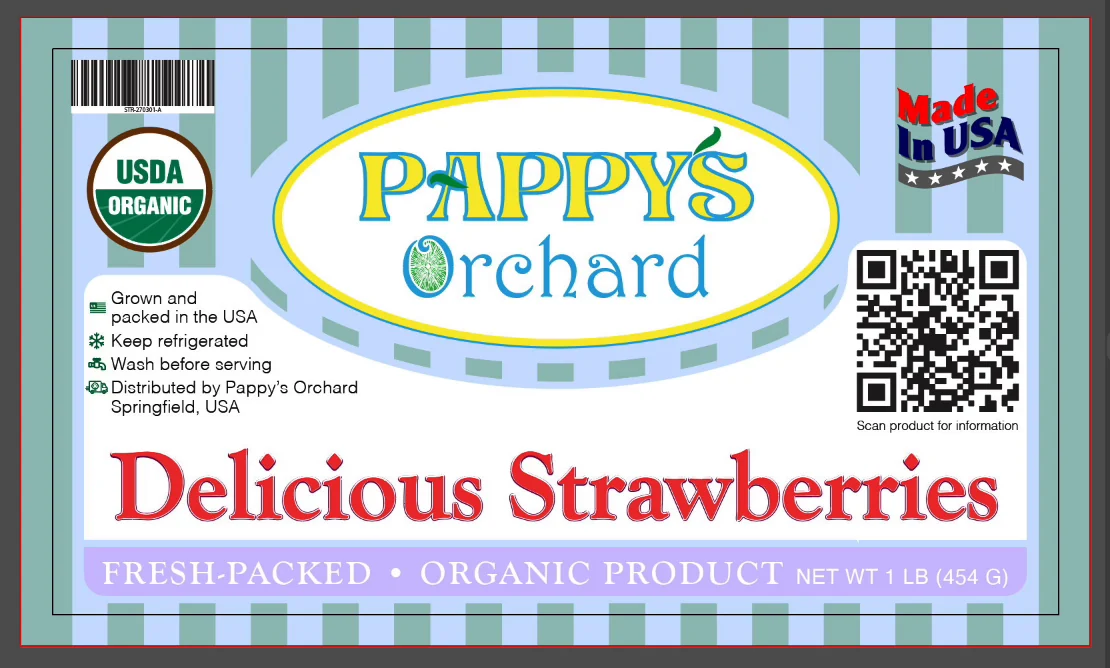
One template, twenty labels, and nobody retyped a number.
7. Export a file for each row
When the rows look right, open the Export tab. Add the label as a template, choose the output folder and file format, and set the Record Range: all rows, or a range such as 1-5 for a first proof.
Click Export. Darty-Ai builds each label in turn and writes a finished file for every row in the range. The progress list shows each file beside the row it came from.
Before a production run, scan a few of the exported labels with a phone and a handheld scanner. Preview checks the artwork; scanning checks the code.
Continue your workflow
New to tags, sheets and previews? Start with Getting Started. To build the sheet for your own labels without leaving Illustrator, see Sheet Builder, and for artwork that changes alongside the codes, Placing Images.